
Release Notes Mode
Release Notes Mode generates user-facing release documentation with highlights, breaking changes, and migration guidance. Perfect for public releases, customer communication, and GitHub releases.
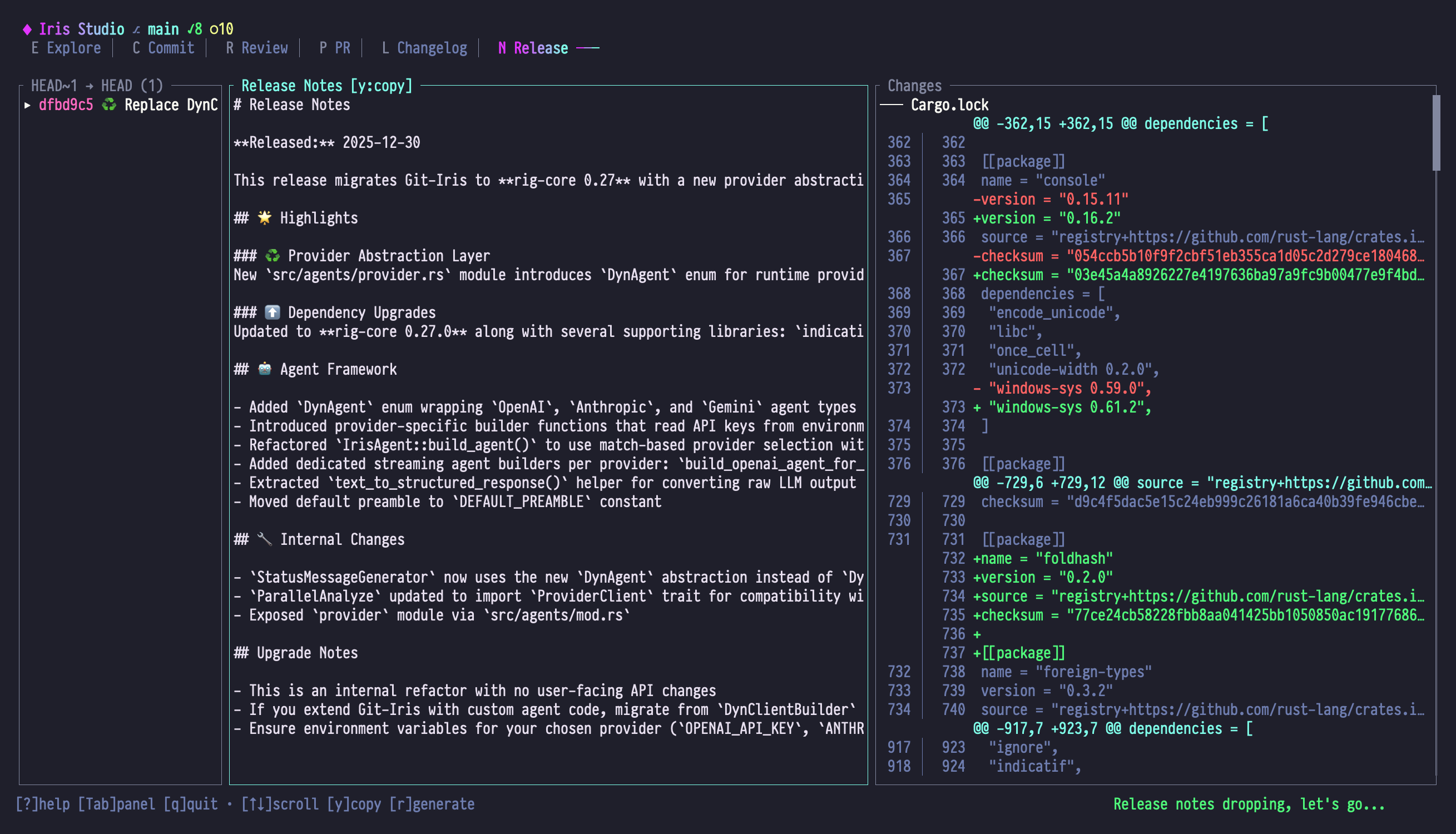
When to Use Release Notes Mode
- Public releases: Announce new versions to users
- GitHub releases: Generate polished release notes
- Customer communication: Highlight what matters to end-users
- Marketing material: Showcase new features and improvements
- Internal updates: Inform team about production changes
Panel Layout
| Panel | Content |
|---|---|
| Left | Commits in version range with hash, title, and version tags |
| Center | User-focused release notes with highlights and feature descriptions |
| Right | Change statistics and file overview for technical context |
Left Panel: Commit List
- All commits in version range
- Version tags
- Commit titles
- Selection indicator
Center Panel: Release Notes
- User-focused narrative
- Highlights section
- Feature descriptions
- Breaking changes
- Migration guidance
- Acknowledgments
Right Panel: Diff Summary
- Change statistics
- File overview
- Context for technical details
Essential Keybindings
Commit List (Left Panel)
| Key | Action |
|---|---|
| j / ↓ | Select next commit |
| k / ↑ | Select previous commit |
| g / Home | Jump to first commit |
| G / End | Jump to last commit |
| f | Select "from" version |
| t | Select "to" version |
| r | Generate release notes |
Release Notes (Center Panel)
| Key | Action |
|---|---|
| j / ↓ | Scroll down |
| k / ↑ | Scroll up |
| Ctrl+d / PgDn | Page down |
| Ctrl+u / PgUp | Page up |
| g / Home | Jump to top |
| G / End | Jump to bottom |
| r | Regenerate release notes |
| Shift+R | Reset (clear notes) |
| y | Copy to clipboard |
Diff View (Right Panel)
| Key | Action |
|---|---|
| j / ↓ | Scroll down |
| k / ↑ | Scroll up |
| [ | Jump to previous hunk |
| ] | Jump to next hunk |
| n | Jump to next file |
| p | Jump to previous file |
Release Notes Format
Iris generates user-focused documentation (unlike technical changelogs):
# Git-Iris v1.1.0

Released on January 28, 2024

## 🎯 Highlights

### 🎨 Custom Emoji Selection

Choose from 100+ emojis for your commit messages! The new emoji
selector lets you pick the perfect icon to categorize your work.
Press `g` in Commit mode to explore.

### ⚡ Faster Navigation

Keyboard shortcuts are consistent across all modes. Switch
between panels with Tab, jump to files with Enter, and navigate
code with vim-like hjkl keys.

## What's New

### Features

- **Emoji Selector**: Interactive modal with type-to-filter
- **Preset System**: Choose commit message styles (concise, detailed, technical)
- **Visual Selection**: Select multiple lines in Explore mode (vim-style `v`)
- **Commit Log in Explore**: Browse per-file or global git history alongside the code, with `Enter` to copy a `git show` command

### Improvements

- Smoother panel transitions with instant focus updates
- Syntax highlighting now supports TypeScript and TOML
- Diff view shows hunk indicators ([2/5])
- File tree remembers expanded state when switching modes

### Bug Fixes

- Fixed file selection sync between tree and diff panels
- Resolved scroll position loss when changing focus
- Corrected emoji display in message preview
- Addressed race condition in blame analysis

## 🚨 Breaking Changes

### Config Format Update

The `use_gitmoji` boolean has been replaced with `emoji_mode`:

**Before** (v1.0.x):

```toml
use_gitmoji = true
```
After (v1.1.0+):
emoji_mode = "auto" # or "none" or "custom:<emoji>"Migration: Your existing config will auto-migrate on first run. No manual changes needed.
Installation
macOS
brew install git-irisLinux
cargo install git-irisFrom Source
git clone https://github.com/user/git-iris
cd git-iris
cargo build --release
Upgrade Guide
If you're upgrading from v1.0.x:
Backup your config:
bashcp ~/.config/git-iris/config.toml ~/.config/git-iris/config.toml.backupUpdate Git-Iris:
bashbrew upgrade git-iris # or cargo install --forceRun once to trigger config migration:
bashgit-iris studioVerify emoji mode:
- Open Settings (press
Shift+Sin Studio) - Check "Emoji" field shows your preference
- Open Settings (press
Known Issues
- Large files (10,000+ lines) may scroll slowly in the code view [Workaround: prefer reviewing smaller files inside Studio]
- Emoji selector doesn't filter by category yet [Planned for v1.2.0]
Contributors
Thank you to everyone who contributed to this release:
- @alice - Emoji selector UI
- @bob - Performance optimizations
- @charlie - Bug fixes and testing
What's Next
Looking ahead to v1.2.0:
- Search across entire codebase
- Jump to symbol/function
- Multi-repository support
- Plugin system
Follow development at https://github.com/user/git-iris
Full Changelog: https://github.com/user/git-iris/compare/v1.0.0...v1.1.0
## Release Notes vs. Changelog

| Aspect | Changelog | Release Notes |
|--------|-----------|---------------|
| **Audience** | Developers | End-users |
| **Tone** | Technical | Accessible |
| **Structure** | Categorized (Added, Changed, Fixed) | Narrative (Highlights, Features, Fixes) |
| **Detail** | Implementation specifics | User benefits |
| **Format** | Keep a Changelog standard | Flexible, storytelling |
| **Use case** | CHANGELOG.md file | GitHub releases, blog posts |

## Workflow Examples

### Example 1: GitHub Release

**Goal**: Publish v1.1.0 release on GitHub

1. Tag release: `git tag v1.1.0`
2. Push tag: `git push origin v1.1.0`
3. Switch to Release Notes mode (<kbd>Shift+N</kbd>)
4. Press <kbd>f</kbd> → select `v1.0.0`
5. Press <kbd>t</kbd> → select `v1.1.0`
6. Press <kbd>r</kbd> to generate
7. Press <kbd>y</kbd> to copy
8. Go to GitHub → Releases → Draft new release
9. Paste notes, publish

### Example 2: Blog Post Announcement

**Goal**: Write release announcement for blog

1. Generate release notes for version
2. Press <kbd>/</kbd> to chat: "Make this more conversational for a blog post"
3. Iris rewrites in friendly tone
4. Press <kbd>/</kbd> again: "Add a 'Why This Matters' section"
5. Iris adds context about significance
6. Copy (<kbd>y</kbd>) and paste into blog draft

### Example 3: Customer Email

**Goal**: Send release update to customers

1. Generate release notes
2. Press <kbd>/</kbd>: "Rewrite for non-technical users, focus on benefits"
3. Iris simplifies language
4. Press <kbd>/</kbd>: "Limit to top 3 highlights only"
5. Iris condenses to key points
6. Copy and use in email template

### Example 4: Internal Team Update

**Goal**: Inform team about production deployment

1. Generate release notes
2. Press <kbd>/</kbd>: "Add 'Deployment Impact' section for ops team"
3. Iris adds operational notes:
   - Config changes
   - Performance impact
   - Rollback procedure
4. Copy and share in Slack/Teams

### Example 5: Multi-Version Summary

**Goal**: Document changes across several releases

1. Generate v1.0.0..v1.1.0 notes
2. Copy (<kbd>y</kbd>)
3. Press <kbd>f</kbd> → `v1.1.0`
4. Press <kbd>t</kbd> → `v1.2.0`
5. Generate again
6. Combine both for "What's new in Q1" post

## Special Features

> The behaviors below are **prompt suggestions**, not coded features. The release-notes output type is a thin markdown wrapper (`MarkdownReleaseNotes = { content: String }` in `src/types/release_notes.rs`), so the structure and content come entirely from the LLM following `src/agents/capabilities/release_notes.toml`. Treat the sections below as conventions Iris tries to follow — not deterministic features of the codebase.

### Highlights Extraction

Iris is prompted to identify the **3-5 most impactful changes** and feature them prominently:

- Major new features
- Significant performance improvements
- Breaking changes
- Security fixes

### User Benefit Focus

Technical commits are translated to user benefits:

**Commit**: `refactor: Extract sync logic to trait`

**Release Note**:
Improvements
- Smoother file synchronization across all modes (Previously selection state could drift between panels)
### Breaking Changes Callout

Major version changes get special attention:

```markdown
## 🚨 Breaking Changes

### API Signature Update
The `generate_commit` function now requires...

[Migration guide]
Upgrade Instructions
Iris is encouraged to generate step-by-step upgrade guidance when the diff looks like it warrants it:
- Backup steps
- Installation commands
- Migration procedures
- Verification steps
If the model judges the change too small to need an upgrade guide, this section may be absent — ask in chat to add one when you want it.
Visual Formatting
- Emoji headers for quick scanning (🎯, 🎨, ⚡, 🚨)
- Bold feature names for emphasis
- Code blocks for commands
- Before/after examples for migrations
Chat Integration
Refine release notes with chat:
Adjust Tone
You: Make the highlights more exciting, this is a major release!

Iris: Updated highlights:
      🎨 **Custom Emoji Selection - Your Commits, Your Style!**

      Say goodbye to boring commit messages! Choose from 100+
      vibrant emojis to make your git history pop. Just press
      `g` in Commit mode and pick your favorite.
Add Sections
You: Add a "Community Thanks" section

Iris: Added:
      ## 💙 Community Thanks

      This release wouldn't be possible without our amazing
      community:
      - 15 contributors
      - 50+ issues resolved
      - 1,200+ stars on GitHub

      Thank you for making Git-Iris better!
Simplify Language
You: The "Breaking Changes" section is too technical. Simplify.

Iris: Updated:
      Before:
      The `use_gitmoji` boolean flag has been deprecated in favor
      of an enum-based EmojiMode with three variants...

      After:
      Emoji settings now have three options instead of on/off.
      Your existing settings will update automatically.
Add Screenshots/GIFs
You: Add placeholders for screenshots

Iris: Added a visual preview section with emoji selector screenshots and commit-log walkthroughs.
Tips & Tricks
1. Generate Early for Feedback
Don't wait until release day:
- Generate notes from
last-tag..HEAD - Share with team: "This is what we're shipping"
- Adjust roadmap if notes don't tell a good story
2. Use Multiple Audiences
Generate different versions:
- Developers: Default output (technical details)
- Users: Chat → "Simplify for end-users"
- Marketing: Chat → "Make this exciting and benefit-focused"
3. Include Visuals
After generating:
- Add screenshot placeholders
- Record GIFs of new features
- Create before/after comparisons
- Embed in final notes
4. Combine with Changelog
- Generate Changelog (Shift+L)
- Copy to CHANGELOG.md
- Switch to Release Notes (Shift+N)
- Generate and copy
- Use for GitHub release
- Link release notes to CHANGELOG: "See CHANGELOG.md for details"
5. Save as Template
First release notes become template for future releases:
- Generate v1.0.0 notes
- Save structure (sections, tone, format)
- For v1.1.0, use chat: "Use the same structure as v1.0.0 notes"
6. Highlight Contributors
You: Add a contributors section with GitHub @mentions

Iris: Added:
      ## Contributors

      Thank you to everyone who contributed:
      - @alice - Emoji selector UI (#123, #125)
      - @bob - Performance optimizations (#130)
      - @charlie - Bug fixes (#128, #131, #134)
Release Notes Checklist
Before publishing, verify:
Troubleshooting
Notes are too technical
Symptom: Reads like a changelog, not user-facing
Fix:
- Press / to chat: "Rewrite for non-technical users"
- Iris translates technical details to benefits
Missing key features
Symptom: Important change not in highlights
Fix:
- Press /: "Add [feature] to highlights"
- Or manually scroll to find feature and chat: "Move this to highlights"
No breaking changes section
Symptom: You know there are breaking changes but section is missing
Fix:
- Press /: "Add breaking changes section for [change]"
- Iris creates section with migration guidance
Version number wrong
Symptom: Title shows wrong version
Cause: Wrong "to" ref selected
Fix:
- Press t to select correct version tag
- Press r to regenerate
Publishing Checklist
After copying release notes:
GitHub Releases
- Go to repo → Releases → Draft new release
- Choose tag (or create new one)
- Title:
v1.1.0orGit-Iris v1.1.0 - Paste release notes
- Attach binaries (if applicable)
- Mark as "pre-release" if beta
- Publish
Blog/Website
- Create new post
- Paste release notes
- Add hero image/banner
- Embed screenshots/GIFs
- Add "Download" or "Upgrade" CTA
- Cross-link to GitHub release
Social Media
- Extract highlights (2-3 bullet points)
- Add link to full notes
- Include screenshot
- Post to Twitter, LinkedIn, etc.
Email Newsletter
- Use simplified version (chat → "Summarize in 200 words")
- Link to full notes on blog/GitHub
- Add upgrade instructions
- Include support contact
Next Steps
- Learn Changelog Mode for technical change history
- Use PR Mode for feature-specific documentation
- Master Chat for tone and content refinement
- See Commit Mode for better commit messages → better release notes