
Commit Mode
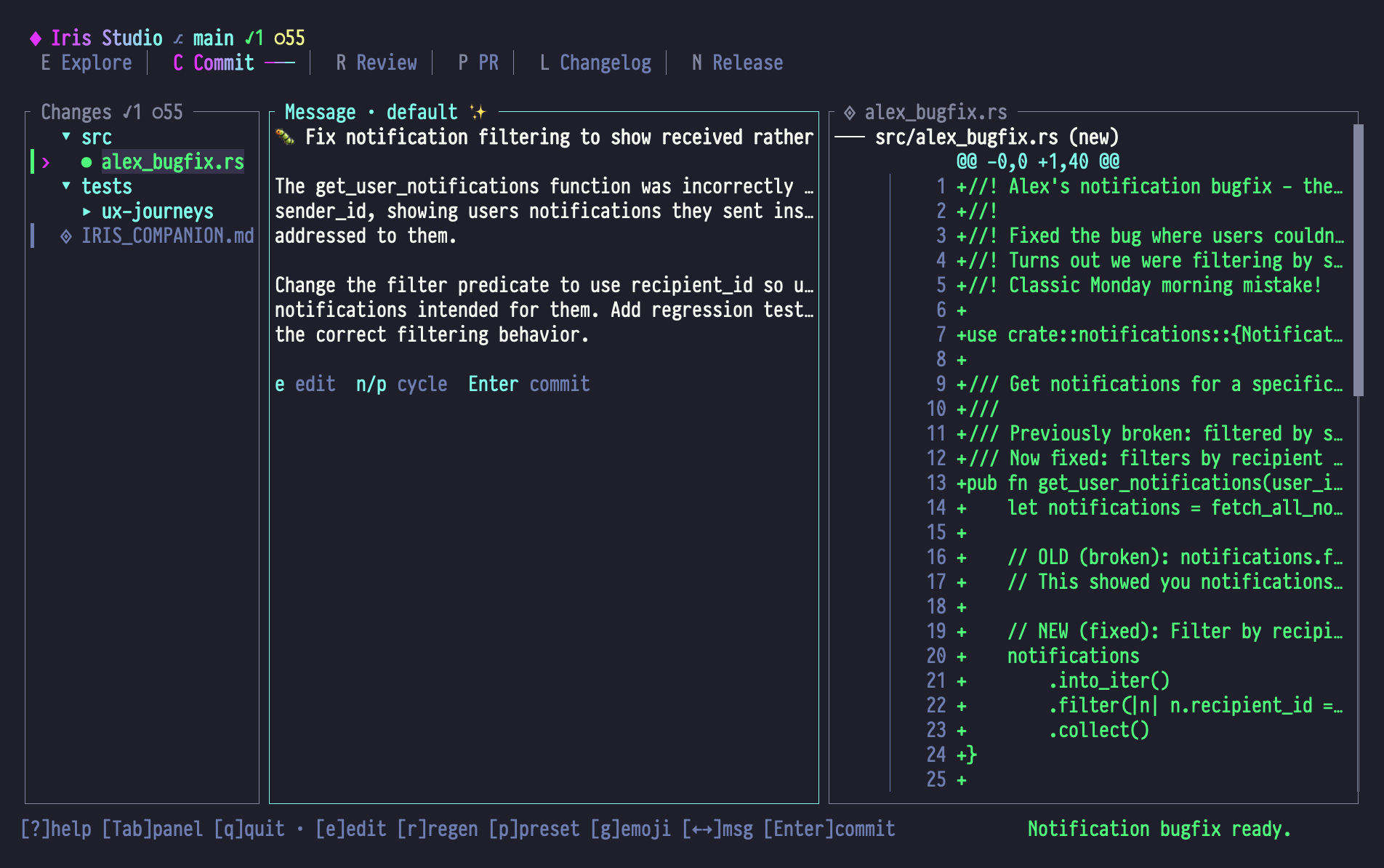
Commit Mode generates AI-powered commit messages with emoji, custom presets, and manual editing. Stage files, review changes, and create meaningful commits—all in one interface.
When to Use Commit Mode
- Creating commits: Generate messages that capture intent, not just changes
- Refining messages: Edit AI suggestions to match your style
- Bulk staging: Stage/unstage files with keyboard shortcuts
- Quick commits: Skip the
git add+git commit -mdance
Panel Layout
| Panel | Content |
|---|---|
| Left | Changed files with staging status, directory tree, and git indicators |
| Center | AI-generated commit message with emoji, title, and body |
| Right | Unified diff preview for selected file with syntax highlighting |
Left Panel: Changed Files
- Staged files (ready to commit)
- Modified files (unstaged)
- Untracked files
- Directory tree structure
- Git status indicators
Center Panel: Message Editor
- AI-generated commit message
- Title + body format
- Emoji (if enabled)
- Manual editing support
- Multiple message variants
Right Panel: Diff Preview
- Unified diff for selected file
- Syntax-highlighted changes
- Hunk navigation
- Multi-file diff support
Essential Keybindings
File Tree (Left Panel)
| Key | Action |
|---|---|
| j / ↓ | Select next file |
| k / ↑ | Select previous file |
| h / ← | Collapse directory |
| l / → | Expand directory |
| Enter | Load file diff (moves focus to diff panel) |
| s | Stage selected file |
| u | Unstage selected file |
| a | Stage all files |
| Shift+U | Unstage all files |
| Shift+A | Toggle view (changed files ↔ all tracked files); in the message editor this same chord toggles amend mode instead — see below |
| g / Home | Jump to first file |
| G / End | Jump to last file |
Message Editor (Center Panel)
| Key | Action |
|---|---|
| e | Edit message (enter text editing mode) |
| r | Regenerate message with AI |
| Shift+R | Reset to original generated message |
| Shift+A | Toggle amend mode: replaces the previous commit instead of creating a new one. Iris loads the HEAD commit message as the starting point, the title shows [AMEND], and pressing Enter dispatches ExecuteAmend rather than ExecuteCommit |
| i | Add custom instructions for generation |
| g | Open emoji selector |
| Shift+E | Quick toggle emoji (None ↔ Auto) |
| p | Open preset selector (style templates) |
| y | Copy message to clipboard |
| Enter | Execute commit (or amend, in amend mode) |
| ← / → | Navigate between message variants |
Diff View (Right Panel)
| Key | Action |
|---|---|
| j / ↓ | Scroll down |
| k / ↑ | Scroll up |
| [ | Jump to previous hunk |
| ] | Jump to next hunk |
| n | Jump to next file in diff |
| p | Jump to previous file in diff |
| Ctrl+d / PgDn | Page down |
| Ctrl+u / PgUp | Page up |
Text Editing Mode
When editing message (after pressing e):
| Key | Action |
|---|---|
| Type | Enter text |
| Backspace | Delete character |
| Ctrl+w | Delete word |
| Ctrl+u | Delete line |
| Enter | New line |
| Esc | Exit editing mode |
Emoji Selector
Press g to open the emoji selector modal. The modal displays a filterable list of gitmoji options with type-to-search functionality.
Emoji Modes
| Mode | Behavior | Display |
|---|---|---|
| None | No emoji in message | ∅ |
| Auto | AI picks appropriate emoji | ✨ (example) |
| Custom | You choose from gitmoji list | 🎨 (your pick) |
Emoji Selector Controls
| Key | Action |
|---|---|
| j / k or ↓ / ↑ | Navigate options |
| Enter | Select emoji |
| Esc | Cancel (keep current emoji) |
| Type | Filter by name/description |
Quick Toggle
Press Shift+E to quickly toggle between None and Auto without opening the selector.
Preset Selector
Press p to open the preset selector. The modal displays available commit message styles with descriptions.
What Presets Do
Presets guide Iris's message generation style:
- default: Balanced, descriptive, follows conventional commits
- concise: Short title, minimal body
- detailed: Extensive context, rationale, tradeoffs
- technical: Implementation details, API changes
Custom Presets
You can add your own in ~/.config/git-iris/presets.toml:
[[preset]]
name = "quirky"
emoji = "🎪"
description = "Fun, playful commit messages"
instructions = """
Write commit messages that are fun and playful while still
being informative. Use metaphors and light humor.
"""
Custom Instructions
Press i to add one-time instructions for the next generation. Enter your guidance in the text input modal, then press Enter to apply or Esc to cancel.
Instructions are used once for the next r (regenerate), then cleared.
Workflow Examples
Example 1: Quick Commit
Goal: Stage changes and commit with AI message
- Open Studio in Commit mode (or Shift+C)
- Files are already loaded in left panel
- Press a to stage all
- Studio auto-generates commit message
- Review message in center panel
- Press Enter to commit
Done! Full workflow in 4 keystrokes.
Example 2: Selective Staging
Goal: Commit only specific files
- Navigate file tree with j/k
- Press s on
iris.rsto stage it - Press j to move to next file
- Press s on
state.rsto stage it - Press r to generate message
- Press Enter to commit
Example 3: Custom Message with Emoji
Goal: Pick a specific emoji and refine message
- Stage files (a)
- Press g to open emoji selector
- Type "bug" to filter
- Select 🐛 with Enter
- Press r to regenerate with bug context
- Press e to edit message
- Type refinements
- Press Esc to exit editing
- Press Enter to commit
Example 4: Using Presets
Goal: Generate a very detailed commit message
- Stage files
- Press p to open preset selector
- Select "detailed" preset
- Press r to regenerate
- Review detailed message
- Press i to add instructions: "Mention performance impact"
- Press Enter in instructions modal
- Press r to regenerate again
- Review + commit
Example 5: Exploring Multiple Variants
Goal: Generate several messages and pick the best
- Stage files
- Message auto-generates (variant 1)
- Press r to generate variant 2
- Press r again for variant 3
- Use ←/→ to navigate between variants
- Press y to copy favorite to clipboard
- Press e to manually combine best parts
- Press Enter to commit
Example 6: Chat-Assisted Refinement
Goal: Iteratively refine message with Iris
- Stage files, auto-generate message
- Press / to open chat
- Type: "Make this more concise"
- Iris updates message directly
- Press Esc to close chat
- Review updated message
- Press / again: "Add emoji"
- Iris updates with emoji
- Press Enter to commit
Staging Shortcuts
Stage Individual Files
● iris.rs    M  ← Press 's' to stage
  state.rs   M
  commit.rs  M
After s:
● iris.rs    A  ← Now staged (green)
  state.rs   M
  commit.rs  M
Stage All
Press a to stage everything:
Before:           After:
● iris.rs    M    ● iris.rs    A
  state.rs   M      state.rs   A
  commit.rs  M      commit.rs  A
Unstage Individual
Press u on a staged file to unstage it.
Unstage All
Press Shift+U to unstage everything.
Toggle View
Press Shift+A while the file tree has focus to toggle between:
- Changed files (default): Only modified/staged/untracked
- All tracked files: Entire repository tree
Useful when you want to see unchanged files for context.
Amend Mode
Press Shift+A while the message editor has focus to enter amend mode. The chord is overloaded by panel:
- In the file tree it toggles the all-files view (above).
- In the message editor it flips
commit.amend_mode, loads the HEAD commit message as the starting point, clears any generated variants, prefixes the title with[AMEND], and rewires Enter to dispatchSideEffect::ExecuteAmendinstead ofExecuteCommit.
Toggle it again to return to a normal commit. Amend mode is the right choice for fixing a typo in the last commit, squashing a small follow-up, or rewriting the most recent message — anything that should rewrite history rather than add to it.
Message Format
Iris generates messages in this format:
[emoji] Title (max 50 chars)

Body paragraph explaining what changed and why.
Can span multiple lines.

- Bullet points for details
- Implementation notes
- Breaking changes if any
Title Rules
- Max 50 characters
- Imperative mood ("Add" not "Added")
- No period at end
- Emoji prefix (if enabled)
Body Guidelines
- Wrap at 72 characters
- Explain why, not just what
- Mention tradeoffs for significant changes
- Use bullet points for lists
Examples
Concise preset:
✨ Add emoji selector to commit UIDefault preset:
✨ Add emoji selector to commit UI

Introduces a modal for selecting commit message emojis with
three modes: None (no emoji), Auto (AI chooses), and Custom
(user picks from gitmoji list).
Detailed preset:
✨ Add emoji selector to commit UI

Introduces a full-featured emoji selection interface that
replaces the previous boolean gitmoji flag with a richer
three-state system.

Previous behavior:
- use_gitmoji: true → AI picks emoji
- use_gitmoji: false → no emoji

New behavior:
- EmojiMode::None → no emoji
- EmojiMode::Auto → AI picks emoji
- EmojiMode::Custom(emoji) → user-selected emoji

This change enables:
- Manual emoji override (press 'g' in commit mode)
- Quick toggle (Shift+E for None/Auto)
- Preserved backward compatibility via config migration

Implementation uses a filterable modal with j/k navigation
and type-to-search functionality.
Special Features
Auto-Generation
As soon as you stage files, Iris automatically generates a commit message. No need to press r unless you want a new variant.
Multiple Variants
Each time you press r, Iris generates a new message and adds it to the list. Navigate between them with ←/→.
Current variant indicator:
Message 2 of 3 ◀ ◀ ◀ ◀Smart Emoji Selection
When emoji mode is Auto, Iris analyzes:
- File types changed
- Nature of changes (new feature, bug fix, refactor, etc.)
- Commit message content
Then picks the most appropriate gitmoji.
Diff Sync
Select a file in the left panel → Diff automatically loads in the right panel. No manual action needed.
Commit Preview
Before committing, you can:
- View full diff (Tab to right panel)
- Navigate through all hunks ([/])
- Check staged vs. unstaged files (left panel)
Tips & Tricks
1. Let AI Do The Work
Don't start by editing. Let Iris generate, then refine if needed:
- Stage files → auto-generates
- If not perfect, press r for variant
- Still not perfect? Press / to chat: "Make it shorter"
2. Use Presets for Consistency
If your team has a commit style:
- Create a custom preset
- Select it with p at the start of each session
- All generated messages follow that style
3. Copy Before Committing
Nervous about losing a good message?
- Press y to copy to clipboard
- Make edits
- If you mess up, paste back with e then Ctrl+V (in edit mode)
4. Combine Chat with Editing
Chat for big changes, editing for small tweaks:
- Chat (/): "Rewrite to focus on performance"
- Edit (e): Fix typos, adjust wording
5. Stage Incrementally
Don't stage everything at once:
- Stage related files (s on each)
- Generate message
- Commit
- Repeat for next logical group
Creates cleaner git history.
6. Emoji as Signal
Use emoji mode to signal commit type:
- Auto: Standard workflow
- Custom (🚧): Work in progress
- Custom (🎨): Style/refactor
- None: Serious production fixes
Troubleshooting
Message not generating
Symptom: Center panel is empty after staging files
Fix:
- Check that files are actually staged (green
Ain left panel) - Press r to manually trigger generation
- Check bottom status bar for error messages
Can't edit message
Symptom: Typing does nothing
Fix:
- Press Tab to focus center panel
- Press e to enter edit mode
- Now type
Emoji not showing
Symptom: Message has no emoji despite Auto mode
Fix:
- Check emoji mode in bottom bar
- Press g to confirm "Auto" is selected
- Press r to regenerate
- If still no emoji, Iris may have decided it's inappropriate (e.g., for merge commits)
Commit fails
Symptom: Press Enter but nothing happens
Fix:
- Check you have staged files (left panel should show green
A) - Check message is not empty (center panel)
- Look for error notification in bottom bar
- Check terminal output if you started Studio with
--debug
Next Steps
- Learn Chat integration for message refinement
- Switch to Review Mode before committing
- See Navigation Patterns for advanced movement
- Check Explore Mode to understand changes before committing