Iris Studio
Iris Studio is Git-Iris's unified TUI (Terminal User Interface) for all AI-powered git workflows. It provides a beautiful, electric-themed interface where you can explore code, generate commit messages, create reviews, and more—all without leaving your terminal.
Visual Overview
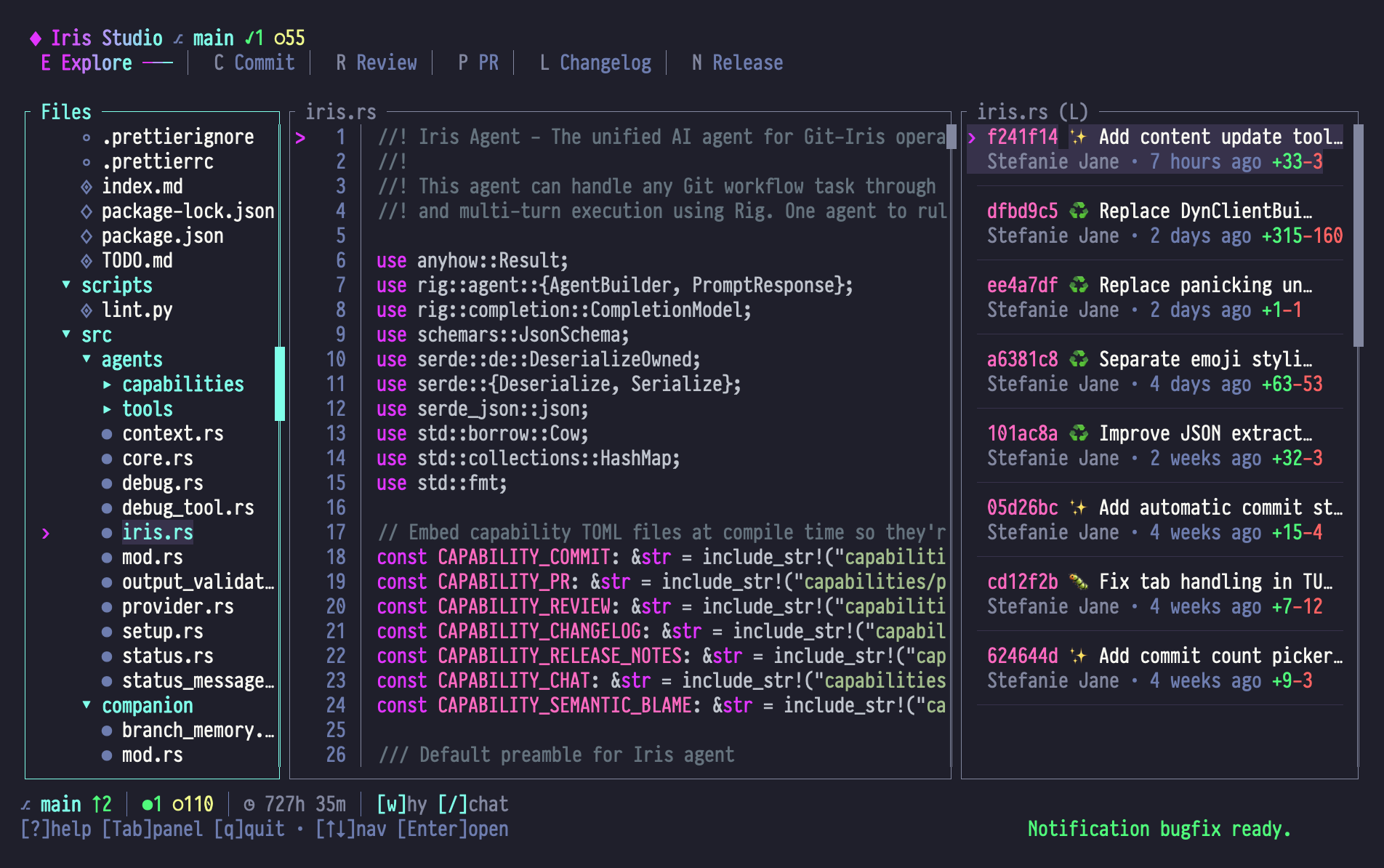
Studio uses a 3-panel layout across all modes:
| Region | Purpose |
|---|---|
| Top Bar | Mode tabs, status indicators, and global shortcuts |
| Left Panel | Navigation (files, commits, changelogs) |
| Center Panel | Main content (code, messages, reviews, diffs) |
| Right Panel | Context (diffs, metadata, analysis) |
| Bottom Bar | Git status, Iris status, notifications |
The Electric SilkCircuit Theme
Studio uses the SilkCircuit Neon color palette for a consistent, cyberpunk aesthetic:
- Electric Purple
#e135ff— Active mode, selections - Neon Cyan
#80ffea— File paths, function names - Coral
#ff6ac1— Commit hashes, numbers - Electric Yellow
#f1fa8c— Warnings, attention - Success Green
#50fa7b— Success states, additions - Error Red
#ff6363— Errors, deletions
Background is dark (#121218) with code panels in #1e1e28.
Global Keybindings
These work in all modes:
| Key | Action |
|---|---|
| ? | Open help modal |
| / | Chat with Iris (universal across modes) |
| Tab | Focus next panel (Left → Center → Right) |
| Shift+Tab | Focus previous panel |
| Shift+E | Switch to Explore mode |
| Shift+C | Switch to Commit mode |
| Shift+R | Switch to Review mode |
| Shift+P | Switch to PR mode |
| Shift+L | Switch to Changelog mode |
| Shift+N | Switch to Release Notes mode |
| , | Open Settings |
| q | Quit Studio |
| Esc | Close modal / Clear selection |
Available Modes
Studio provides six specialized modes for different git workflows:
Explore Mode
Ever wondered why a line of code exists? Explore Mode is your detective tool. Navigate files, ask Iris "why was this added?", and get historical context backed by commit analysis and code patterns.
- Panel Layout: File Tree | Code View | Analysis
- Key Feature: Semantic blame ("why does this code exist?")
- When to use: Understanding unfamiliar code, investigating bugs, learning codebase
Commit Mode
Say goodbye to "fix stuff" commits. Iris analyzes your changes, understands the intent behind them, and crafts messages that your future self will thank you for.
- Panel Layout: Changed Files | Message Editor | Diff View
- Key Feature: Smart emoji selection + custom instructions
- When to use: Creating meaningful commits with context
Review Mode
Get a code review before your PR does. Iris examines your changes for security issues, performance concerns, and best practices—catching problems before they reach your teammates.
- Panel Layout: Changed Files | Review Output | Diff View
- Key Feature: Multi-dimensional analysis (security, perf, best practices)
- When to use: Pre-commit review, PR preparation, code quality checks
PR Mode
Stop staring at an empty PR description. Iris synthesizes your commits into a coherent narrative that tells reviewers exactly what changed, why, and how to test it.
- Panel Layout: Commit List | PR Description | Diff View
- Key Feature: Structured markdown output ready to paste
- When to use: Creating PRs, documenting feature branches
Changelog Mode
Release day shouldn't mean hours of commit archaeology. Iris categorizes your changes into a proper Keep a Changelog format—Added, Changed, Fixed, Removed—automatically.
- Panel Layout: Commit List | Changelog Output | Diff View
- Key Feature: Categorized changes (Added, Changed, Fixed, etc.)
- When to use: Release preparation, version documentation
Release Notes Mode
Turn technical commits into user-friendly release notes. Iris highlights what users care about, explains breaking changes clearly, and formats everything for your audience.
- Panel Layout: Commit List | Release Notes | Diff View
- Key Feature: User-focused narrative with breaking changes
- When to use: Public releases, customer communication
Chat with Iris
Press / in any mode to open the chat modal. Chat is universal—it persists across modes and can access all generated content.
What You Can Do in Chat
- Ask questions about generated content: "Why did you choose this emoji?"
- Request changes: "Make the commit message more concise"
- Get explanations: "Explain the security issues you found"
- Update content directly: Iris has tools to modify commit messages, reviews, and PRs
Chat state persists throughout your session, so you can have ongoing conversations while switching between modes.
See Chat Documentation for details.
Navigation Patterns
Studio follows vim-like navigation for consistency:
Movement
- j/↓ — Move down
- k/↑ — Move up
- h/← — Collapse / Previous (context-dependent)
- l/→ — Expand / Next (context-dependent)
- g/Home — Go to first
- G/End — Go to last
- Ctrl+d/PgDn — Page down
- Ctrl+u/PgUp — Page up
Selection
- Enter — Select item / Toggle expand
- v — Enter visual selection mode (Explore only)
- y — Copy to clipboard
Common Actions
- r — Regenerate / Refresh (context-dependent)
- e — Edit (Commit mode)
- w — "Why?" / Semantic blame (Explore mode)
See mode-specific pages for detailed keybindings.
Status Indicators
Git Status (Bottom Left)
main | 3 staged, 2 modified, 1 untrackedShows current branch and change counts.
Iris Status (Bottom Center)
⠋ Generating commit message...— Iris is thinking✓ Done— Task complete✗ Error: ...— Something went wrong- Idle when no task is running
Notifications (Bottom Right)
Temporary messages appear for 5 seconds:
- Green — Success
- Yellow — Warning
- Red — Error
- Cyan — Info
Tips & Tricks
Focus Flow
Most modes default to center panel focus (where the action is). Use Tab to move to side panels when you need more context.
Quick Mode Switching
Hold Shift + first letter of mode name:
- Shift+E = Explore
- Shift+C = Commit
- Shift+R = Review
Chat Everywhere
/ opens chat from anywhere. Ask Iris to:
- Explain generated content
- Make changes to messages/reviews
- Answer questions about the codebase
Clipboard Integration
Press y in most contexts to copy:
- Commit messages
- Code lines/selections
- Review content
- PR descriptions
- Changelog entries
Next Steps
- Read Navigation Patterns for detailed movement
- Jump to a mode-specific guide (Explore, Commit, Review, PR, Changelog, Release Notes)
- Learn about Chat with Iris