Now playing & transport
The now-playing chip, per-zone sidebar rows with pause/resume, preview-cabinet chips, and overflow to Studio.
The now-playing transport is the set of small surfaces that tell you what is rendering and let you steer it without opening Studio. It lives in three places: the Now Playing panel at the bottom of the sidebar, the now-playing chip in the Studio Stage header, and the zone chips in the preview cabinet. In a multi-zone scene, every one of them tells the truth per zone instead of mirroring a single effect everywhere.
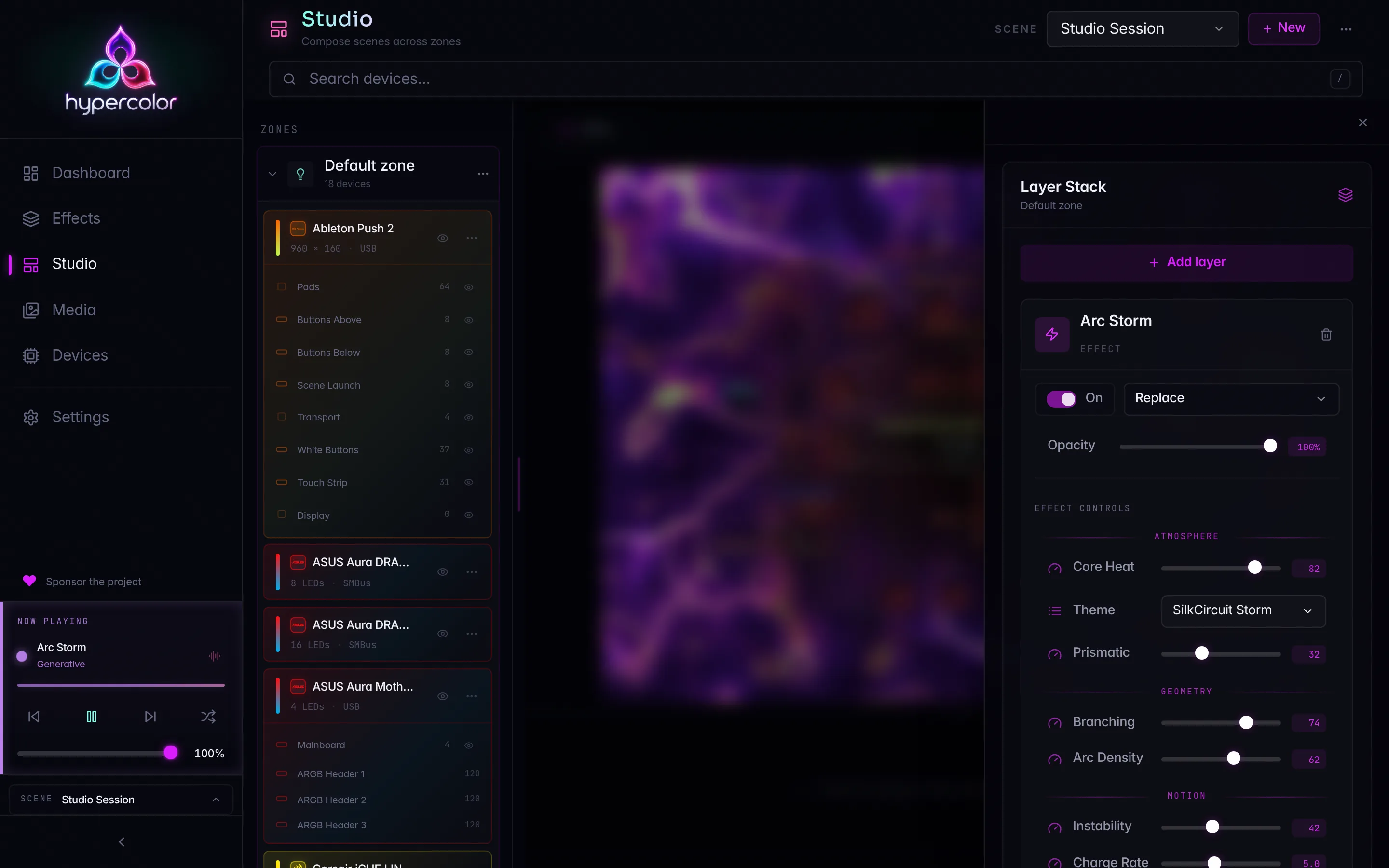
#The sidebar Now Playing panel
The Now Playing panel sits below the nav and above the collapse toggle. It appears whenever something is rendering, and it carries a live thumbnail of the running effect, an extracted color palette, transport controls, and a global brightness slider.
The panel styles itself from the running effect. It pulls a palette off the live canvas and publishes it as --np-primary, --np-secondary, and --np-tertiary CSS variables, so the glow, the palette strip, and the zone swatches all tint to match what is on your LEDs right now. A state dot at the top left glows while the effect runs and dims when output is paused; beside it the panel names the running effect and its category.
#Transport controls
The control row carries five actions:
- Previous and Next step through the effect catalog. They walk the runnable effects in order and wrap around, so Next from the last effect returns to the first.
- Pause / Resume is the center button. It is global: it pauses or resumes all device output at once, in every scene shape.
- Shuffle jumps to a random runnable effect, skipping the one already playing when more than one exists.
- The brightness slider sets global brightness from 0 to 100 percent. It pushes updates as you drag, throttled so a fast drag does not flood the daemon.
Previous, Next, and Shuffle only consider effects flagged runnable. The full catalog is browsable from the Effects section; the transport is the quick way to cycle through it without leaving your current page.
#The audio toggle
A small audio button rides in the metadata row of a single-zone scene. Its behavior depends on the running effect:
- Audio on: a waveform icon that glows coral and pulses purple on the beat. Click to disable audio.
- Audio off, effect is audio-reactive: a muted icon, dimmed. Click to enable audio.
- Audio off, effect is not reactive: hidden entirely, since there is nothing to react to.
For the full audio pipeline and device setup, see Audio setup.
#Per-zone rows in a multi-zone scene
When the active scene has more than one LED zone, the singular effect metadata is replaced by one honest row per zone. Each row shows a color swatch tinted to the zone’s color, the zone name, what that zone is showing, and a per-zone pause/resume toggle.
The “what it is showing” label resolves in order: the zone’s directly-assigned effect name first, then the zone’s top layer caption if the effect index does not know the name, then No effect if the zone is rendering nothing. A paused zone dims to make its state obvious at a glance.
The sidebar shows up to three zone rows. Any zones beyond that fold into a “+N more zones” link that opens Studio, where every zone is visible. The exact cap is SIDEBAR_ZONE_ROW_CAP = 3.
#The row toggles are per-zone, and they say so
This is the important guarantee. In a multi-zone scene, pausing a zone never silently stops only the primary zone while the others keep rendering. Each row’s toggle acts on its own zone, and the title text spells it out: hovering reads Pause Keyboard or Resume Desk, naming the exact zone.
The center transport Pause / Resume button is the exception: it is global. It pauses or resumes every device’s output at once, and its tooltip says so (Pause all output / Resume all output). Use the per-zone row toggles when you want to stop one zone and leave the rest rendering.
Under the hood, a per-zone pause flips that zone’s enabled flag through a guarded zone PATCH, not the global stop. If the scene changed underneath you between read and write, the toast reads “Scene changed, try again” and the panel reloads rather than clobbering someone else’s edit. That optimistic-concurrency contract is shared across Studio; see Zone API and concurrency for how the revision guard works.
#The Studio Stage now-playing chip
The Stage header carries its own now-playing chip, and it does a different job from the sidebar’s. It names the top layer of the selected surface (or No layers when the stack is empty), and clicking it toggles the composition slide-over. That slide-over is the only way layer editing is summoned in Studio’s two-column workspace, so the chip is your handle on the layer stack.
The chip is rendered for every surface, both Lights and Screens, because both carry a layer stack and both need a way to open the composition panel. For how the layer stack itself works, see Layers.
#Preview-cabinet zone chips
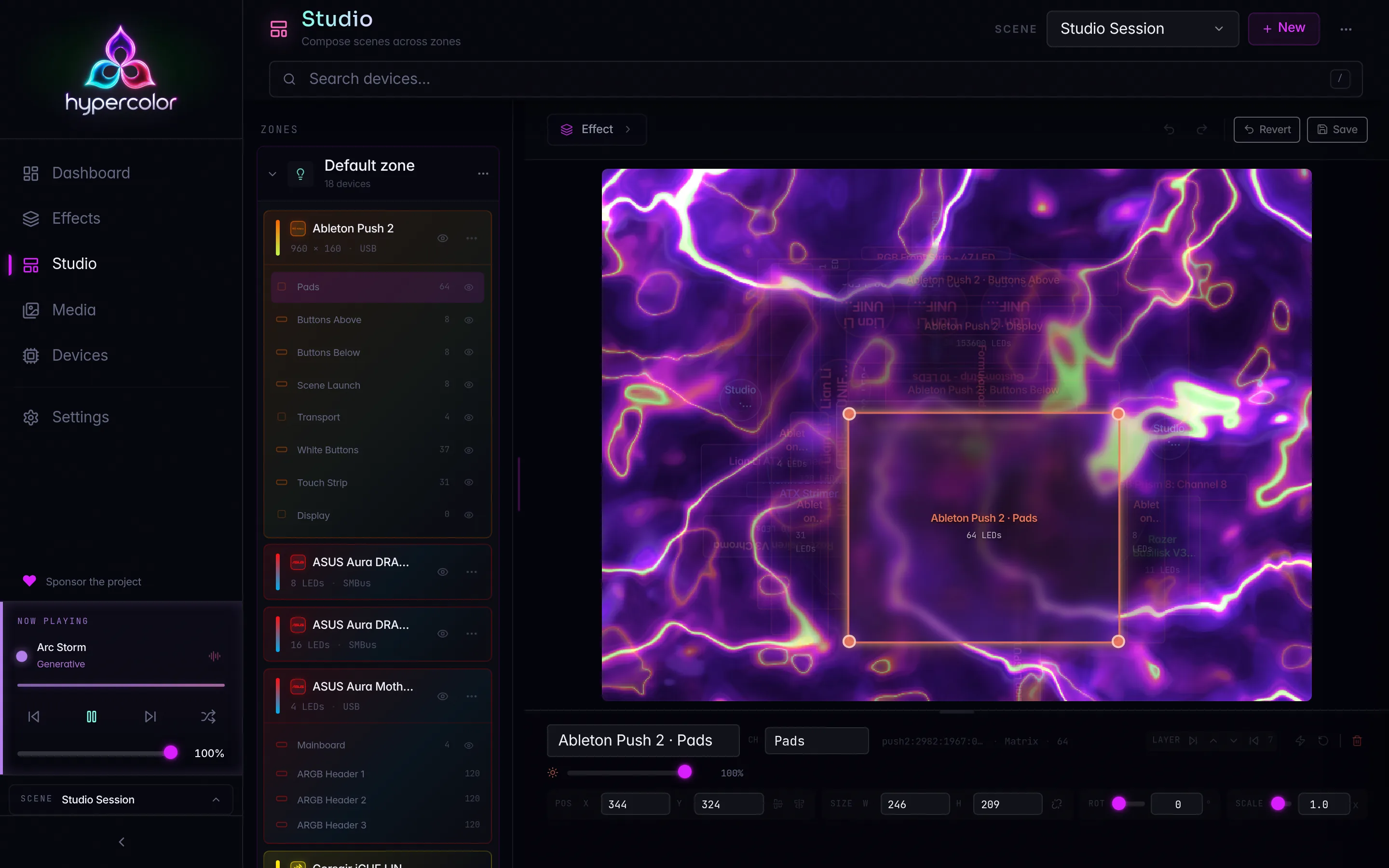
The preview cabinet’s info overlay shows one chip per LED zone: a color dot, the zone name, and what that zone is showing. These chips are display-only. They live inside the cabinet’s non-interactive overlay, so they report state without offering controls. A paused zone’s chip dims and its tooltip reads Zone paused.
The chips and the sidebar rows read from the same per-zone source of truth, so a two-zone scene shows two chips that match the two sidebar rows. There is no separate state to drift out of sync.
#Where the panel runs, and in what mode
The sidebar canvas thumbnail behaves differently depending on the page you are on. On pages that already have their own large preview, the sidebar drops the redundant thumbnail and instead drives the ambient palette. On /, /effects, and /studio, the Now Playing canvas runs in Palette mode: it extracts colors from the live frame to tint the chrome rather than drawing a second copy of the effect. Every other page (/media, /devices, /settings) shows the live thumbnail instead.
This is why the sidebar glow, the palette strip, and the zone swatches all share the running effect’s colors no matter which page you are viewing.
#How it all connects
graph TD
    Scene[Active scene] --> ZE[Per-zone effect state]
    ZE --> Rows[Sidebar zone rows]
    ZE --> Chips[Preview-cabinet chips]
    Rows -->|pause / resume| PATCH[Guarded zone PATCH]
    PATCH -->|enabled flag| Scene
    Rows -->|overflow| Studio[Open Studio]
    Chip[Stage now-playing chip] -->|click| Comp[Composition slide-over]
The transport surfaces are a thin, honest read-and-steer layer over the shared active scene. They never invent their own state, they always name the zone they act on, and when many zones are in play they hand you off to Studio rather than pretending the rig is simpler than it is.
#Related pages
- Studio overview: the Scene, Zone, Layers, and Layout model.
- Zones: create, color, enable, and partition your rig.
- Effects and controls: applying effects to a zone and tuning them live.
- Multi-zone walkthrough: build a second zone end to end.