Effects & controls
Apply effects to a zone and tune the live control panel inside a layer: debounced patching, media playback, and screen-reactive controls.
To light a zone, add an effect layer to it and tune that effect from the layer’s own control panel. Every slider, color, and toggle edits live: your change applies optimistically the instant you move it, then a debounced patch lands the final value on the daemon without restarting the effect or tearing down the layer between frames.
This page covers picking an effect for a zone, the live control panel, media playback settings, and the extra controls that appear when an effect reacts to your screen.
#Pick an effect for a zone
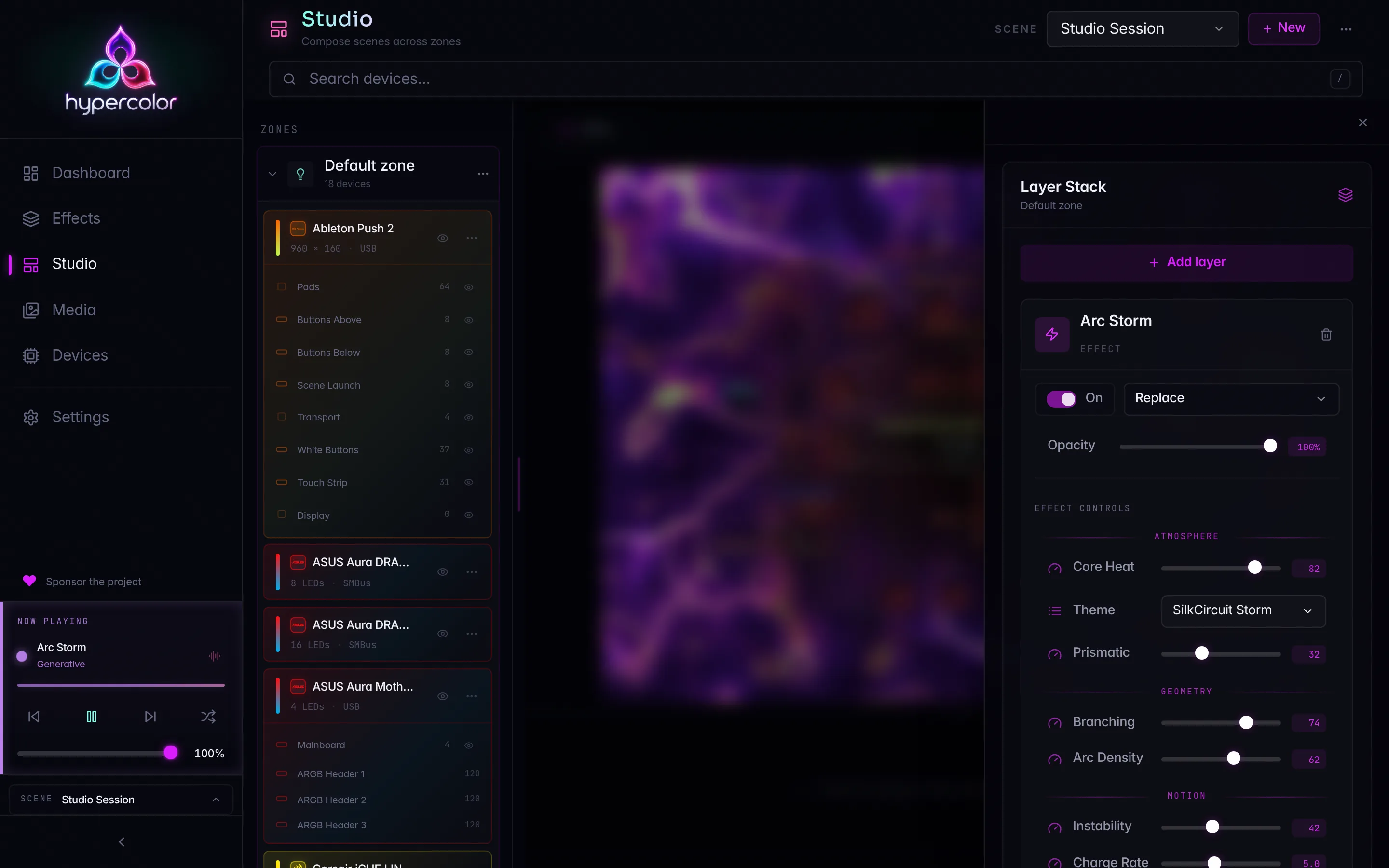
Effects live inside layers, and layers live inside zones. To add one, open the zone’s composition panel (click the now-playing chip on the Stage) and use Add layer. The picker opens with two tabs:
- Effect: the runnable effect catalog, filtered to what fits the surface you selected.
- Media: uploaded images and video from your Media library.
Search filters as you type. Click an effect to add it as a layer in the selected zone.
On a screen surface the Effect tab relabels to Face and shows display-category effects (clocks, faces, ambient screen art) instead of LED effects. The picker only ever offers what makes sense for the surface you are composing.
The catalog spans the native built-in effects compiled into the daemon plus the SDK HTML effects. The exact count grows with every release, so browse the full library with parameters and previews in the Effects section.
#Where an applied effect lands
The zone you have selected in Studio is also the app-wide apply target. That means a quick-apply from the dashboard, the sidebar player, or the command palette lands in the zone you are composing, not on some global default. The target is one of:
- Default zone: used when nothing else is selected (
ApplyTarget::Primaryin the Rust enum). - A named zone: the LED zone currently focused in Studio.
- All zones: applies the effect to every LED zone in the active scene at once.
Selecting a screen or the Unassigned entry is not a valid apply target, so the target falls back to the Default zone. For the whole picture of how zones and scenes compose, read Zones and Scenes.
#The live control panel
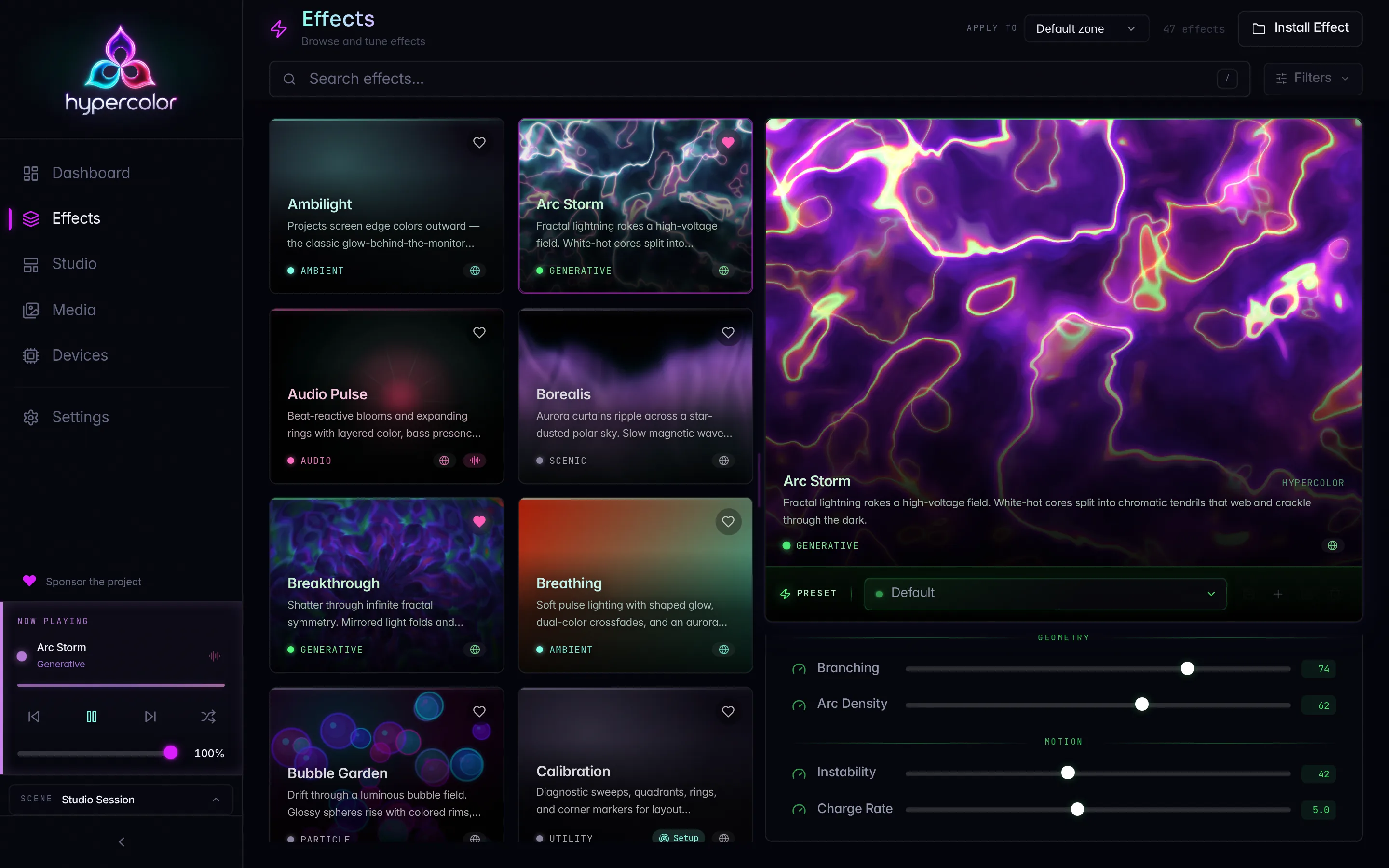
Once an effect layer exists, its parameter controls render inline under the layer in the composition panel. The panel reads the effect’s own control schema from the daemon, so you get exactly the sliders, color pickers, dropdowns, and toggles that effect author defined. No two effects share a fixed control set.
Every edit follows the same path:
- Optimistic apply. The moment you move a control, the local value updates and the canvas reflects it. The UI never waits on a network round-trip to feel responsive.
- Coalesce. The raw edit is queued into a pending batch keyed by control id. Last write per key wins, so dragging a slider sends only its final resting position, not every intermediate frame.
- Debounced patch. After 120 ms of quiet, the coalesced batch is sent as a single partial patch through the dedicated
patch_layer_controlsroute.
The 120 ms debounce is a Studio product contract. It is fast enough to feel live while still collapsing a rapid drag into one clean write.
Effect-control edits go through a partial, debounced patch that updates only the changed control values. They never rewrite the whole layer or restructure the stack, so dragging a slider does not tear the layer row down and rebuild it between frames. The effect keeps rendering the entire time.
#Concurrent edits stay consistent
Control patches are unguarded and apply in commit order against the real layer id. A whole-layer replacement retires that id, so a late control patch cannot land on the replacement. The control session keeps local edits coalesced while requests are in flight, and newer values always win.
This is the same shared control-patch session that powers display-face controls and the standalone effect panel, so the behavior is identical everywhere you tune live controls.
#Media playback controls
A media layer (image or video from your library) carries playback settings instead of effect parameters. Three controls appear under the layer:
- Speed: a
0.1×to4×multiplier on playback rate, in0.05steps. - Loop mode: Loop (repeat from the start), Ping-pong (play forward then backward), or Play once (stop at the end).
- Auto-play: whether the media starts playing as soon as the layer becomes active.
Unlike effect controls, media playback edits rewrite the layer through the standard layer update rather than the debounced control patch. Each change is a discrete, deliberate setting, so there is no slider-drag stream to coalesce.
To add media to a zone, upload it first from the Media library, then pick it from the Media tab in the add-layer picker. For how layers stack, blend, and reorder, see Layers.
#Screen-reactive controls
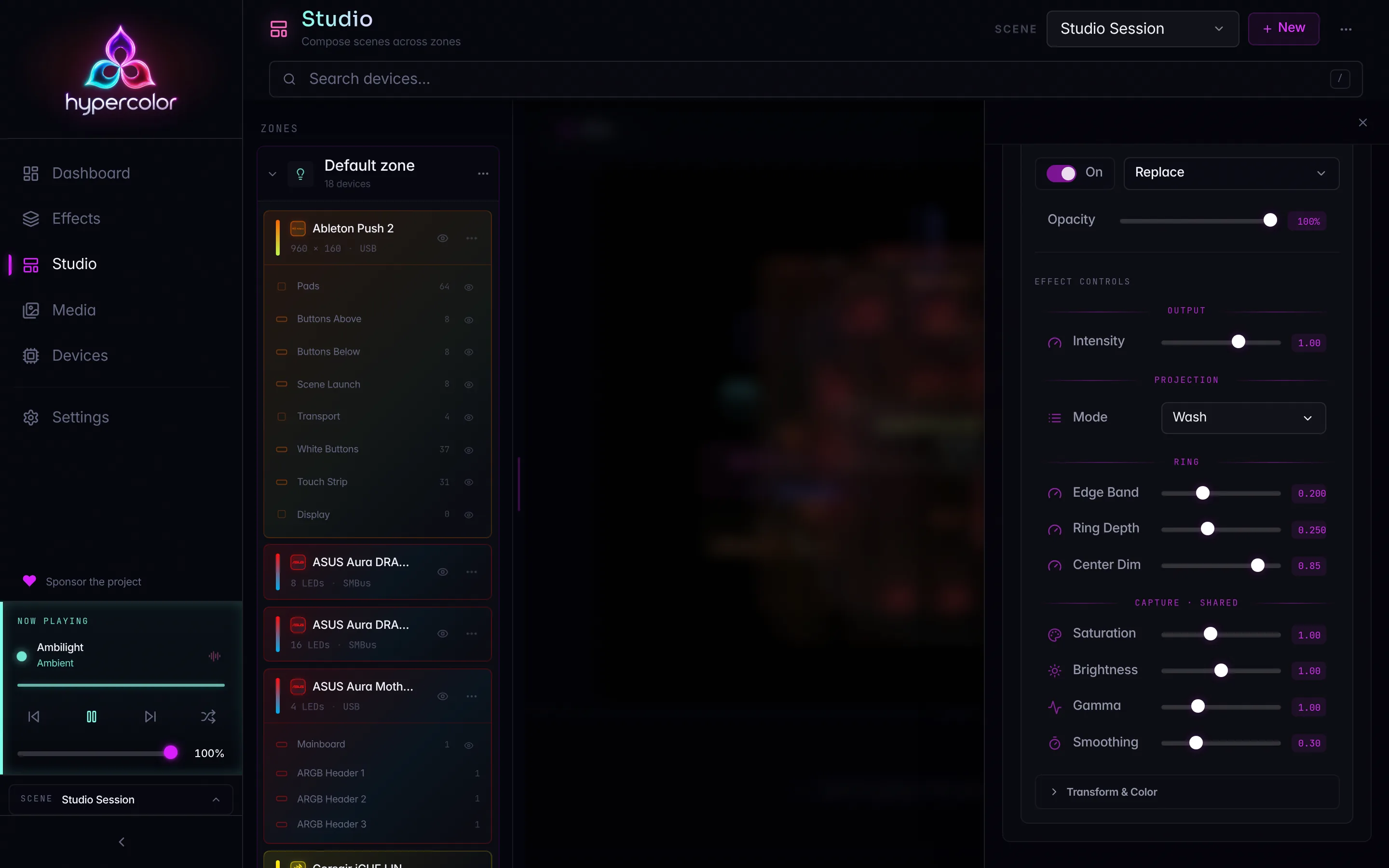
When an effect is tagged screen-reactive, the control panel grows a Capture · Shared section below the effect’s own controls. It holds four knobs that tune the captured pixels before they reach your lights: Saturation, Brightness, Gamma, and Smoothing (low smoothing is cinematic, high is twitchy).
These knobs are deliberately global. One screen-capture pipeline feeds every screen-reactive effect and layer, so they write the daemon’s shared capture config rather than this one layer’s controls. Adjust them here and every screen-reactive effect on your rig responds.
The section only appears for effects that actually consume screen input, so a non-reactive effect never shows capture controls it cannot use. For setting up screen capture as an input source and the ambilight workflow, see audio setup for the parallel reactive-input model and the Effects section for screen-reactive effects to try.
#Where to go next
- Layers: stack effects and media, blend modes, opacity, reorder, per-layer health.
- Zones: partition your hardware into the canvas regions effects target.
- Now playing & transport: the per-zone now-playing rows and pause/resume.
- Multi-zone walkthrough: build a second zone and apply different effects to each.
- Effect controls reference: how effect authors define the control schema this panel renders.