Philips Hue
Connect a Hue Bridge to Hypercolor: N-UPnP and mDNS discovery, link-button pairing, and low-latency DTLS streaming via the Entertainment API.

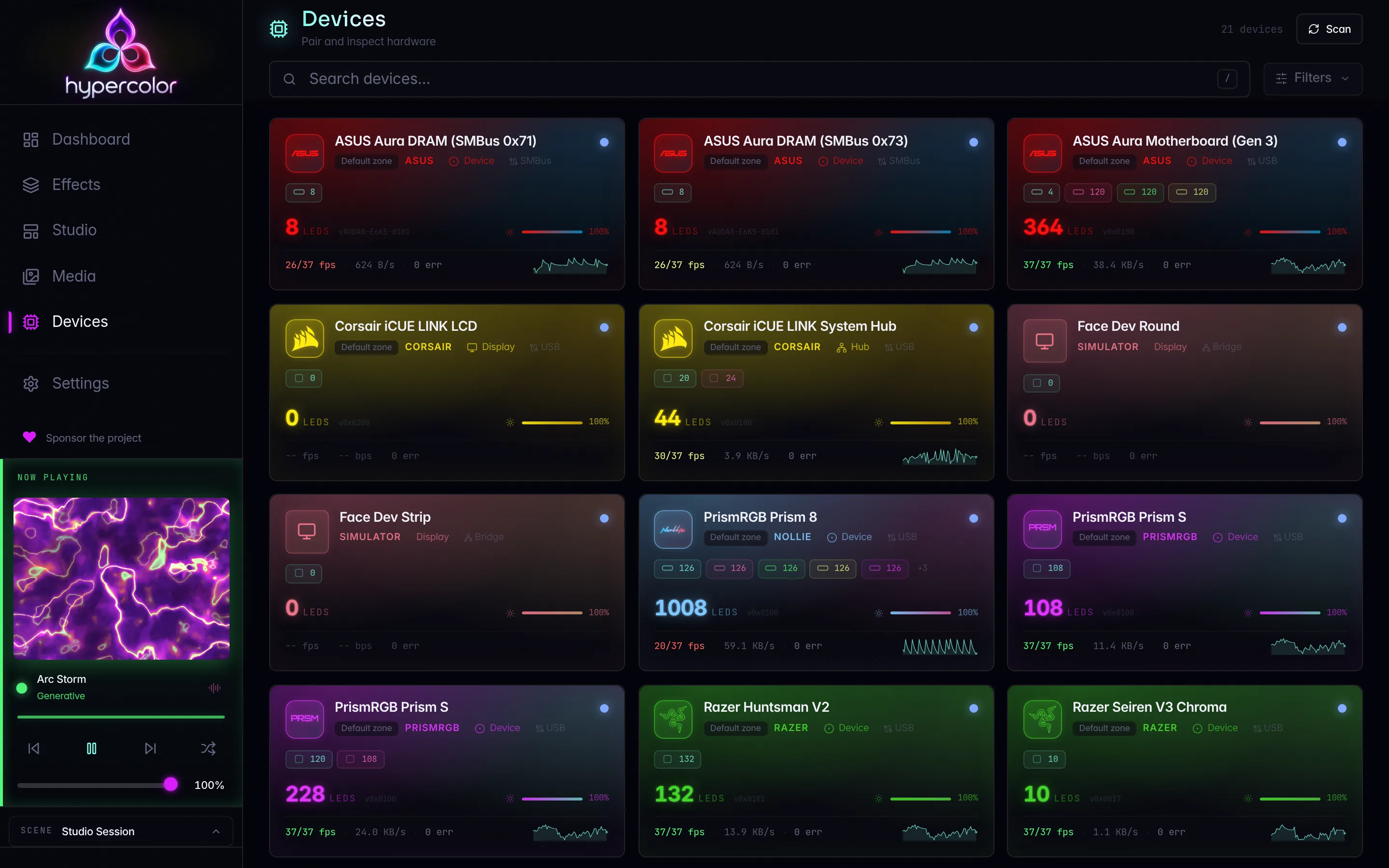
Hypercolor controls Philips Hue lights through the Entertainment API, the same low-latency streaming path used by Hue Sync. Once paired, a DTLS session streams color data directly to the bridge at up to 25 fps. The connection is local-only: no cloud account is required once the bridge is on your LAN.
#What you need
- A Hue Bridge (v2 or later) on the same local network as your machine
- Physical access to the bridge (you will press the link button during pairing)
- An Entertainment area configured in the Hue mobile app
Entertainment areas are the Hue concept that maps lights to spatial channels for streaming. Without one, Hypercolor has nothing to stream to. Open the Hue app, go to Entertainment, and create an area with the lights you want to control before continuing.
#How discovery works
Hypercolor finds bridges in two passes, run automatically on every scan:
mDNS (
_hue._tcp.local.): the scanner listens for bridge announcements on the LAN. This is the preferred path and works without internet access. The scanner waits up to 2 seconds for responses.N-UPnP fallback (
https://discovery.meethue.com): used only when mDNS returns nothing. The Signify cloud endpoint maps your bridge’s serial to its current IP. This requires outbound HTTPS access.
Both paths are combined and deduplicated before probing; if mDNS already found your bridge you will not hit the cloud endpoint.
If your bridge is on a different VLAN or mDNS is blocked by your router, discovery will fall back to N-UPnP. If that is also blocked you can add the bridge IP directly in your Hypercolor configuration:
[drivers.hue]
bridge_ips = ["192.168.1.42"]#Pairing
Pairing is a time-limited handshake with the bridge link button.
You have 30 seconds from the moment you start the pairing request to press the link button on the bridge. If you miss the window, the bridge returns error type 101 (“link button not pressed”). That is not a hard failure; it just means the button was not pressed in time. Run the command, walk to the bridge, press the button.
#Via the CLI
hypercolor devices discover --target hue
hypercolor devices pair <device>
discover prints the bridges it found, listing each by name and ID. Pass the bridge’s name or ID (the hex serial also shows in the Hue app under Bridge settings) to pair. Hypercolor presses through the link-button handshake and confirms once credentials are stored. Add --no-activate to store credentials without immediately starting a streaming session.
#Via the web UI
Open the Devices panel, click Discover, and select your bridge from the list. The UI walks you through the link-button prompt.
#What gets stored
A successful pairing writes two credentials to Hypercolor’s credential store, keyed by bridge serial:
| Key | Field | Purpose |
|---|---|---|
api_key | username from the pairing response | DTLS PSK identity; sent in hue-application-key header for CLIP v2 requests |
client_key | clientkey from the pairing response | PSK secret; the actual key material for the DTLS handshake |
Both are required. If either is missing the streaming session will not open. Credentials survive bridge IP changes: discovery re-probes the stored bridge ID and updates the address automatically.
#DTLS streaming
Once paired and an entertainment config is selected, Hypercolor activates streaming with a PUT to /clip/v2/resource/entertainment_configuration/{id} and then opens a UDP DTLS session:
- Port: UDP 2100 on the bridge IP
- Protocol:
TLS_PSK_WITH_AES_128_GCM_SHA256(mandated by the Entertainment API) - PSK identity: the
api_key(your application username) - PSK secret: the
client_key(hex-decoded) - Packet format:
HueStreamv2, a 52-byte header followed by 7 bytes per channel (channel ID + CIE xy chromaticity + brightness, each component quantized to u16)
Colors are converted from sRGB to CIE 1931 xy + brightness before transmission. Hypercolor looks up each light’s gamut type (A, B, or C) from CLIP v2 and clamps the chromaticity to that gamut so out-of-gamut values degrade gracefully rather than clipping hard.
The DTLS connection uses insecure_skip_verify. Hue bridges ship self-signed certificates tied to the bridge serial, so there is no public CA to validate against, and the Entertainment API mandates a pure PSK handshake anyway. Authentication is enforced by the pre-shared key, not the certificate chain. This is by design, not a security gap.
The streaming session enforces a cap of 20 channels per packet. Standard entertainment areas have far fewer, so this limit is rarely reached in practice.
#Entertainment configuration selection
If your bridge has multiple entertainment areas, Hypercolor picks one automatically (alphabetically by name). To pin a specific area, set it in config:
[drivers.hue]
entertainment_config = "Living room"  # name or UUID both work
The config name is matched case-insensitively. You can also pass a UUID if you have areas with identical names.
#Channel layout in Hypercolor
Each entertainment channel becomes a zone in Hypercolor’s device view. Channel names come from the CLIP v2 response; when a channel has a generic name like “Channel 3”, Hypercolor resolves it from the light names associated with that channel’s members. Channel positions (x, y, z in Hue’s normalized coordinate space) are stored and used for spatial layout sampling.
See Layouts for how to position the bridge’s zones on the canvas.
#Performance
The Entertainment API supports up to 25 fps. Hypercolor’s device capabilities record max_fps = 25 for Hue. The render loop respects this when adapting frame cadence across your rig.
#Troubleshooting
#Bridge not discovered
Check that your machine and bridge are on the same subnet and that mDNS (port 5353 UDP multicast) is not blocked. Try the N-UPnP path by visiting https://discovery.meethue.com in a browser. If it returns no results your bridge’s internet registration may have expired. Use bridge_ips in config as the reliable fallback.
#Error 101 on pairing
The bridge returned “link button not yet pressed.” Press the physical link button on top of the bridge and retry the hypercolor devices pair command within 30 seconds. This is not a hard failure.
#Streaming starts but lights don’t change
Verify an entertainment area is active in the Hue app and that the correct entertainment_config is set. Check hypercolor devices list: an active status means frames are flowing. A bridge sitting at known is missing credentials and needs a re-pair.
#Wrong colors
Hue lights use CIE xy color: sRGB colors are converted through a gamut-specific matrix. Gamut A covers older bulbs, B mid-generation, C modern entertainment-capable lights. If a light shows wrong hues, its gamut type may be absent from the CLIP v2 metadata; Hypercolor falls back to Gamut C in that case.
#Related pages
- Network devices overview: discovery architecture shared across Hue, Nanoleaf, WLED, and Govee
- Finding devices: general device discovery workflow
- Layouts: positioning Hue zones on the spatial canvas
- Compatibility matrix: supported Hue Bridge entry; attached lights are discovered through the bridge and its Entertainment areas
- Network discovery troubleshooting