The pieces
Mental model: daemon, app, tray, TUI, CLI, and web UI. What each is, when to use it, and how they all connect on :9420.
Every interface in Hypercolor talks to one thing: the daemon, which runs on port 9420. Understanding that one sentence removes most of the confusion about which tool to open.
#The daemon is the engine
hypercolor-daemon is the heart of the system. It runs the render loop, communicates with your hardware, serves the REST API, streams WebSocket events, and optionally exposes the MCP server for agent integration. Everything else (the app, TUI, CLI, and web UI) is a client.
The daemon binds to 127.0.0.1:9420 by default. A clean install exposes the web UI from that same port because web.enabled is true by default; no separate process is needed for the browser interface. The only time you see :9430 is when developing the web UI itself (just ui-dev), where Trunk runs a hot-reload dev server that proxies API calls back to :9420.
The daemon enforces a single-instance lock. If you try to start a second one, it exits immediately with “hypercolor-daemon is already running; exiting”.
You can run the daemon directly:
hypercolor-daemon
hypercolor-daemon --listen-all        # bind all interfaces (LAN access)
hypercolor-daemon --listen 192.168.1.42
hypercolor-daemon --log-level debug
For service management on Linux, systemctl --user is the right tool (it is a user service, not a system service). On macOS it is a LaunchAgent. The hypercolor service CLI command wraps both.
#The desktop app is the recommended front door
hypercolor-app is a Tauri shell that owns the native window, the system tray icon, daemon supervision, autostart registration, and single-instance forwarding. When you install Hypercolor on Linux, Windows, or macOS via a desktop package, this is what you get.
The app supervises the daemon: it spawns and watches hypercolor-daemon as a child process, restarting it if it exits unexpectedly (up to five rapid restarts within five minutes before the watchdog circuit-breaker trips). On Linux it also probes for a running systemd user service and connects to that instead of spawning a child. The app hands its daemon only a port, so the [network] settings decide whether that daemon listens on the LAN, just as they do for a service-managed one. The exception is a HYPERCOLOR_URL that names a host other than 127.0.0.1, ::1, or localhost: the app then binds its daemon to exactly that address so it can reach it. If you upgraded with LAN already selected, read the upgrade note first: that setting now takes effect. You do not need to start the daemon separately when you use the app.
The window hosts the web UI at http://127.0.0.1:9420 (or whatever HYPERCOLOR_URL points to). It is a Tauri webview loading the same page any browser would show at that address. New links open in your system browser rather than inside the app window.
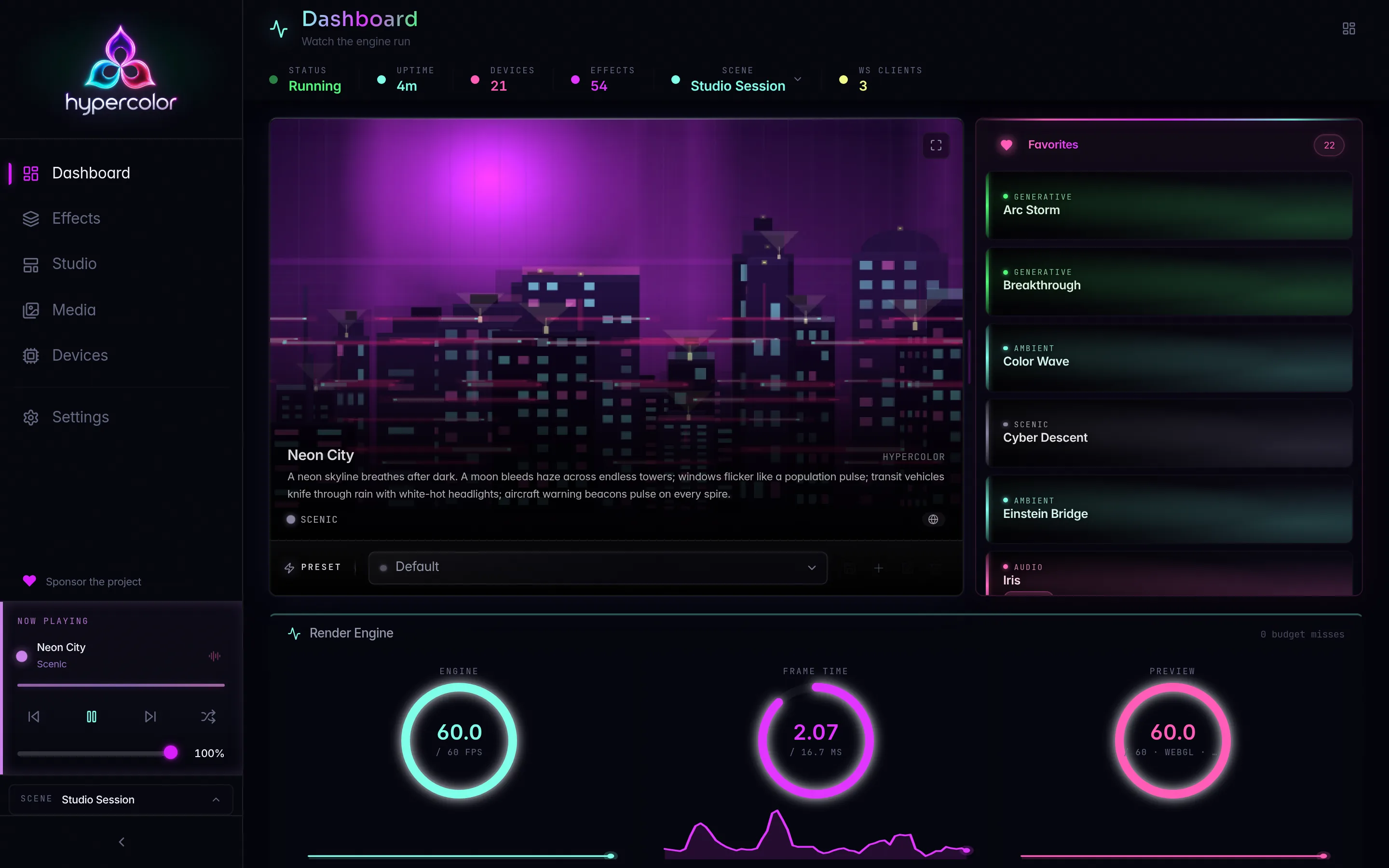
The app’s tray icon reflects daemon state: active, paused, or disconnected. The tray menu gives you quick access to effects, scenes, pause/resume, brightness presets, and server switching without opening the full window.
App flags (forwarded to the running instance via the single-instance plugin):
hypercolor-app --minimized   # start without showing the window (autostart path)
hypercolor-app --show        # bring the window to front
hypercolor-app --quit        # send a quit signal to the running instance
Autostart is registered via the Tauri autostart plugin with --minimized; on macOS this creates a LaunchAgent, on Windows a registry entry.
#The web UI lives inside the daemon
The Leptos web UI is served directly by the daemon at :9420. There is no separate web server. Once the daemon (or app) is running, opening http://localhost:9420 in any browser gives you the full Studio interface: the effect library, layout editor, scene manager, audio visualizer, and settings.
The web UI uses a binary WebSocket connection to :9420/api/v1/ws for real-time canvas previews, spectrum data, and event delivery. If the WebSocket channel fails to connect, the preview panel will appear dark while the API remains functional.
#The TUI is the terminal dashboard
The Ratatui terminal UI gives you a live instrument panel without leaving the shell: effects, device status, canvas preview, and a spectrum visualizer, all rendered in your terminal.
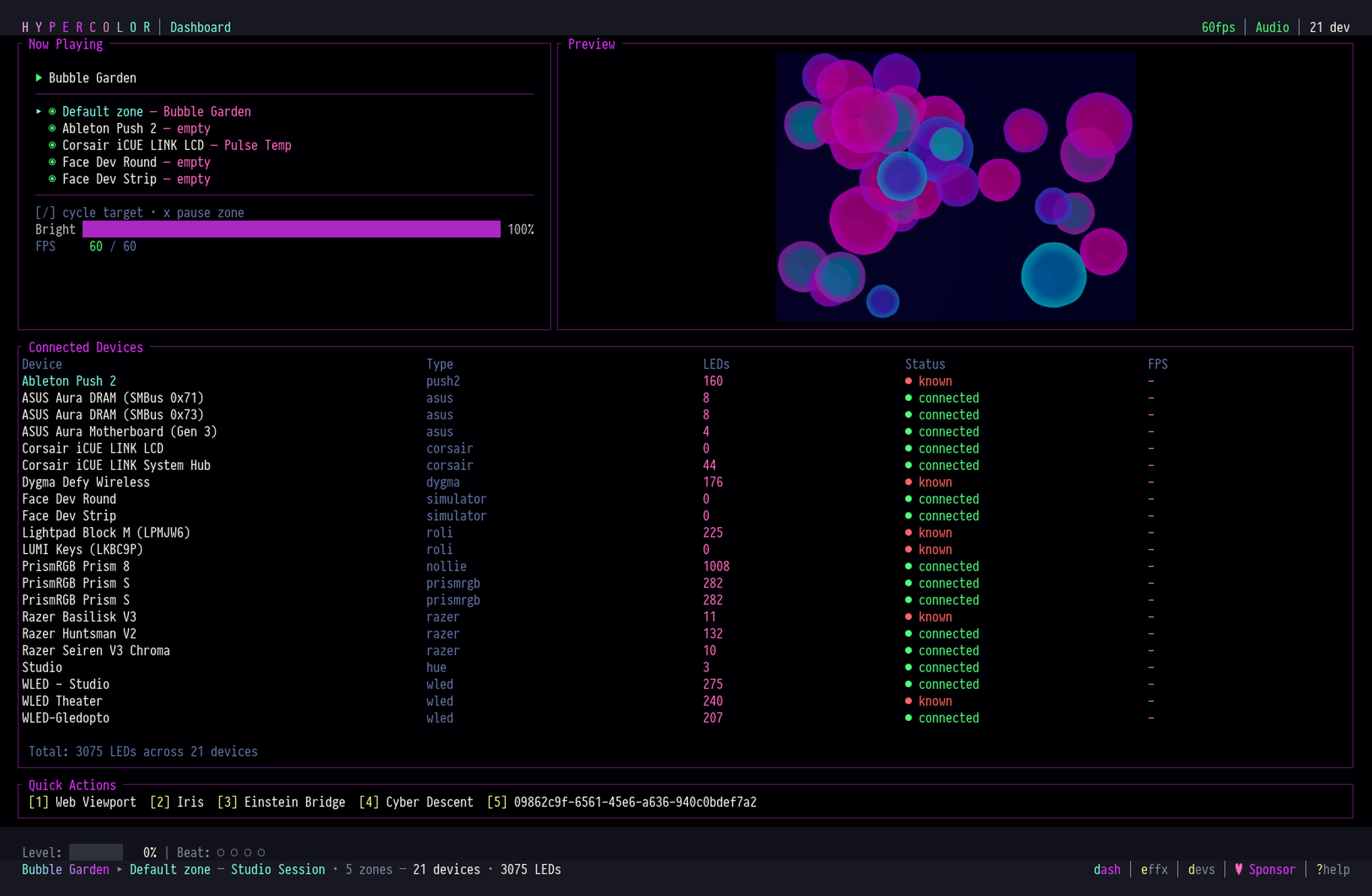
Launch it through the CLI:
hypercolor tuiThe TUI connects to the daemon over the same WebSocket endpoint. It redirects its own trace logs to hypercolor-tui.log in the system temp directory (/tmp on Linux, $TMPDIR on macOS) so they do not corrupt the alternate screen.
The TUI is feature-gated at compile time (--features tui). Official builds include it.
For the full TUI reference, see Using the TUI.
#The CLI is your scripting interface
hypercolor talks to the daemon over HTTP REST. Every command is a network call; there is no in-process logic beyond formatting the output. This makes it composable in scripts, cron jobs, and shell pipelines.
hypercolor status
hypercolor effects list
hypercolor effects activate borealis --speed 80
hypercolor brightness set 75
hypercolor scenes list
hypercolor devices list
hypercolor scenes activate "night mode"
Global flags let you point the CLI at any daemon on the network:
hypercolor --host 192.168.1.5 --port 9420 status
HYPERCOLOR_HOST=server HYPERCOLOR_PORT=9420 hypercolor effects list
The three top-level commands that look similar but do different things:
hypercolor servershows the identity and health of the connected daemon instance.hypercolor serversdiscovers other Hypercolor daemons on the local network.hypercolor servicemanages the lifecycle of the local daemon process (start,stop,restart,logs --follow).
For the full CLI reference, see CLI reference.
#The desktop app owns the tray
hypercolor-app provides the system tray on every desktop platform. Its tray menu communicates with the daemon over REST and WebSocket at localhost:9420, and lets you switch effects, adjust brightness, pause or resume output, and open the web UI. Start the app minimized when you want tray presence without opening its window.
#How they connect
Every client uses the same address:
http://127.0.0.1:9420     REST API and static web UI
ws://127.0.0.1:9420/api/v1/ws   WebSocket (events, frames, spectrum)
The daemon also optionally exposes an MCP server at /mcp for AI agent integration, but this is disabled by default ([mcp] enabled = false in hypercolor.toml). See the MCP server reference to enable it.
The only port a normal install uses is 9420. Port 9430 is the Leptos hot-reload dev server (just ui-dev) and is only relevant if you are developing the web UI. Do not point users at :9430 in a packaged install.
#Choosing what to open
| I want to… | Use |
|---|---|
| Full GUI with mouse and visual editor | Desktop app or browser at :9420 |
| Quick effect or brightness change | Tray menu |
| Terminal dashboard with live preview | hypercolor tui |
| Script, cron, or shell pipeline | hypercolor <command> |
| Run headless (no window) | Daemon only, or desktop app started minimized for tray access |
| AI agent integration | Enable MCP in config, then connect your agent |
In most cases, the desktop app is the right answer. It starts the daemon for you, shows up in your tray, and opens the full web UI when you click the window: everything from one install.