Finding devices
USB auto-discovery, mDNS network scanning, pairing network devices for credentials, identify, and udev permission fixes.
Hypercolor discovers USB devices automatically the moment the daemon starts. Network devices (WLED, Philips Hue, Nanoleaf, Govee) are found over the local network, and the ones that require credentials need one additional devices pair step. This page covers all three paths plus the udev permission fix that solves the most common “device missing” problem on Linux.
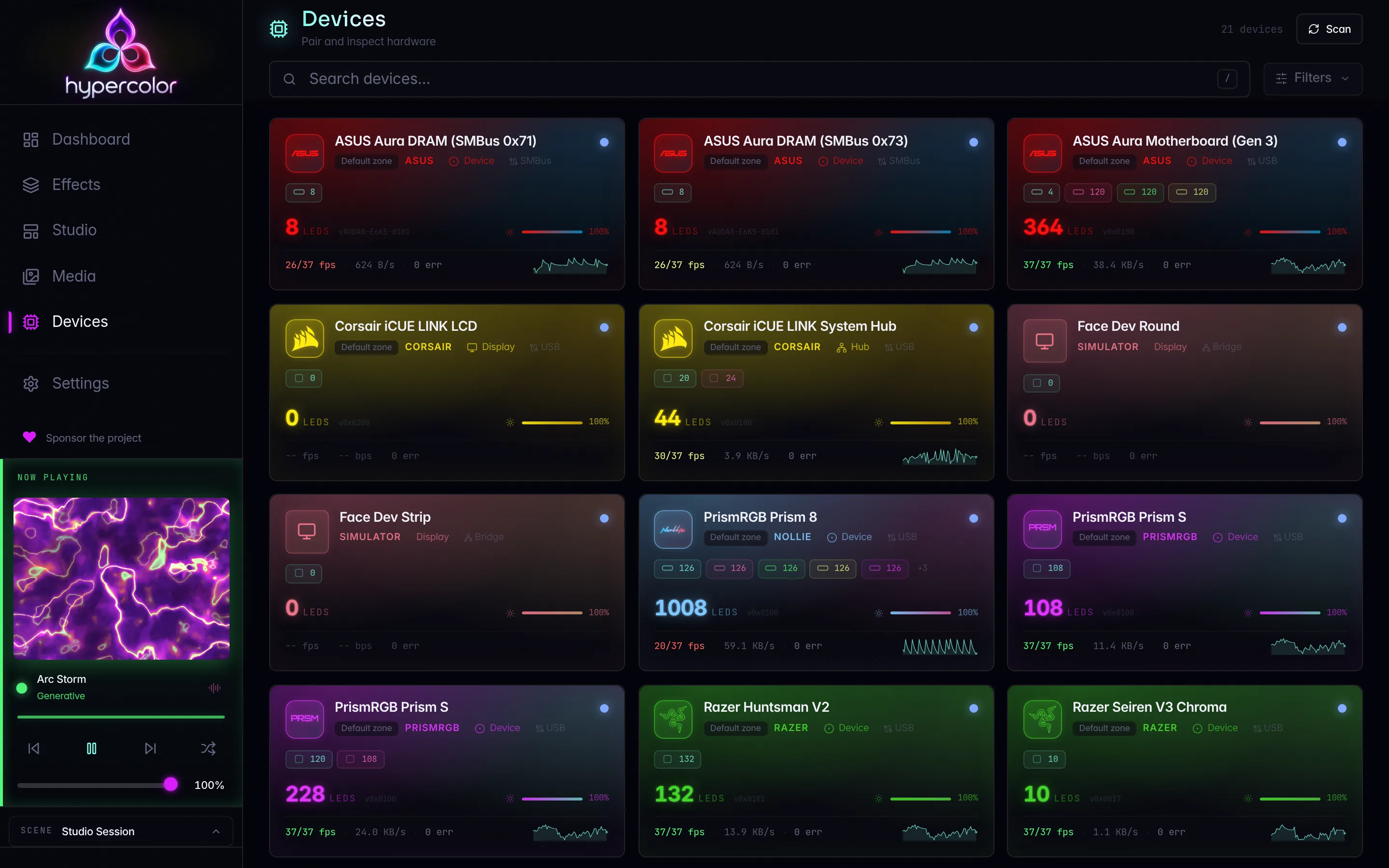
#Check what Hypercolor already found
hypercolor devices listThe table view shows every device the daemon knows about, its driver, the backend route, LED count, status, and firmware version. A freshly started daemon scans for USB and network devices automatically, so this is usually the right first stop.
Filter options:
hypercolor devices list --status connected
hypercolor devices list --driver razer
hypercolor devices list --backend-id usb#Trigger a scan
If you plugged in a device after the daemon started, or you want to re-probe the network, run a discovery scan manually:
hypercolor devices discoverBy default this scans all configured discovery targets with a 10-second timeout. Narrow it with --target to limit which transports are probed, and --timeout to adjust how long to wait:
# USB devices only
hypercolor devices discover --target usb

# WLED on the network, with a longer timeout for slow mDNS responses
hypercolor devices discover --target wled --timeout 20

# Hue bridge discovery
hypercolor devices discover --target hue
The daemon runs discovery automatically at startup and on a periodic schedule, so a manual discover is mainly useful for immediate feedback after a hardware change.
#USB devices
USB-connected devices (Razer, Corsair, ASUS Aura, Lian Li, QMK keyboards, and others) are auto-discovered without any configuration. The daemon scans USB and HID buses at startup and connects devices it recognises from the compatibility matrix.
#Fix “device visible in lsusb but not in Hypercolor”
The most common reason a USB device does not appear is missing udev rules. Udev rules grant your user session access to the raw HID and USB device nodes. Without them, the kernel hides the device from any process running without root privileges.
Install the rules:
just udev-installThis copies both rules files (udev/99-hypercolor.rules for USB and hidraw access, udev/70-hypercolor-input.rules for input capture) to /etc/udev/rules.d/, reloads the udev database, and retriggers existing device events. After installation you must either re-plug the device or log out and back in for the session ACLs to take effect.
The .deb and AUR packages install both rules files for you. The prebuilt one-liner does not because it never asks for sudo. Follow the one-liner permissions steps to install the rules retained with the active release. Then re-plug the device or log out and back in.
If another RGB manager (openrazer daemon, Aura Sync, iCUE, or an OpenRGB you started yourself) is running and holding the same HID device, Hypercolor cannot connect to it even with correct udev rules. Stop the other tool before starting Hypercolor, or check whether the other tool’s kernel module grabbed the device at boot. OpenRGB run through hypercolor openrgb start is not a conflict: it uses a Hypercolor-written configuration that skips natively owned devices, and it drives only what no native driver covers. See OpenRGB fallback.
If the device is visible to the OS but nothing claims it, hypercolor devices unclaimed lists it with its VID:PID, and My device isn’t supported covers the OpenRGB bridge and the device-support request from there.
#Network devices
WLED strips, Philips Hue bridges, Nanoleaf panels, and Govee lights are discovered over your local network. The daemon uses mDNS to find WLED (_wled._tcp), Hue (_hue._tcp), and Nanoleaf (_nanoleafapi._tcp) devices, and a UDP multicast scan (239.255.255.250:4001) for Govee.
Common reasons a network device is not found:
- The device is on a different subnet or VLAN, and mDNS does not cross the boundary.
- Your router has AP isolation or multicast filtering enabled.
- For Govee: LAN control is not enabled in the Govee Home app (it is off by default, per-device).
- For Hue: the Bridge is on a different subnet from the daemon host.
If auto-discovery does not find your device, the vendor-specific pages cover each protocol’s pairing requirements in detail: Hue, Nanoleaf, WLED, Govee.
WLED and Govee addresses are remembered. Once discovery has found one of those devices, the daemon records its address in driver-inventory.json under the machine-local state directory (~/.local/state/hypercolor/ on Linux) and probes it directly at startup and on every later scan. A strip stays reachable through a quiet mDNS responder or a multicast-filtering router, and an unreadable inventory file is set aside rather than blocking startup. Deleting a device drops its entry, so a device you removed on purpose is not learned back on the next scan.
#Pairing network devices that require credentials
WLED devices that support DDP appear automatically once discovery finds them. Devices that require a credential exchange (Philips Hue with its link button, Nanoleaf with its power-button pairing mode) need one extra step: devices pair.
hypercolor devices pair <device-name-or-id>Replace <device-name-or-id> with the device name shown by hypercolor devices list or its device ID. The daemon sends an authentication request to the device and stores the returned credentials so future connections are automatic.
Philips Hue: Press the physical link button on the Hue Bridge, then within 30 seconds run hypercolor devices pair. The daemon sends the pairing request to the Bridge and stores the API token.
Nanoleaf: Hold the power button on the Nanoleaf controller for 5 to 7 seconds until it enters pairing mode, then run hypercolor devices pair.
# Pair and immediately activate the device
hypercolor devices pair "Hue Bridge"

# Pair but skip immediate activation (useful in scripts)
hypercolor devices pair "Hue Bridge" --no-activate
On success you will see a paired or already_paired status message. The credentials are persisted; you do not need to pair again unless you factory-reset the device.
devices pair is the only supported way to store network credentials. The command POSTs to /devices/{id}/pair on the daemon and saves tokens through the device registry. There is no config-file credential field to fill in manually.
#Inspect a device
Once a device is listed, get its full detail:
hypercolor devices info <device-name-or-id>This shows the driver, backend route, transport, LED count, current status, and firmware version.
#Identify a device physically
If you have several similar devices and need to tell them apart, flash a test pattern on one:
hypercolor devices identify <device-name-or-id>The device will flash for 5 seconds by default. Use --duration to adjust:
hypercolor devices identify "Corsair LL120" --duration 10#Test solid-color output
Lighting output belongs to the active scene, not to a device mutation. Activate the built-in solid-color effect to test the current scene’s output path:
hypercolor effects activate "Solid Color" --param color=#ff00ffUse zones when only part of the rig should receive the effect.
#Still not finding your device?
If a device appears in lsusb but not in hypercolor devices list, or a network device is on the same subnet but does not show up, the troubleshooting pages cover the full diagnostic flow:
- Devices not found: USB permission checks, udev verification, HID conflict diagnosis
- Network discovery: mDNS, VLAN, AP isolation, Govee LAN control
- Hardware compatibility: whether your specific model is supported