Desktop app
The Tauri shell: window, tray menu, pause/resume, brightness submenu, autostart, export diagnostics, logs and effects folders.
The Hypercolor desktop app (hypercolor-app) is the native shell that wraps the daemon, the tray icon, and the web UI into one installable package. On Windows and macOS it is the primary way most users run Hypercolor. On Linux it is an optional convenience on top of the daemon-only or TUI workflows.
The app does three things the raw daemon cannot: it supervises the daemon process (auto-restarts on crash), registers the system tray icon, and presents the web UI in a native window. Everything it controls is ultimately talking to the daemon on :9420; the shell itself has no rendering logic.
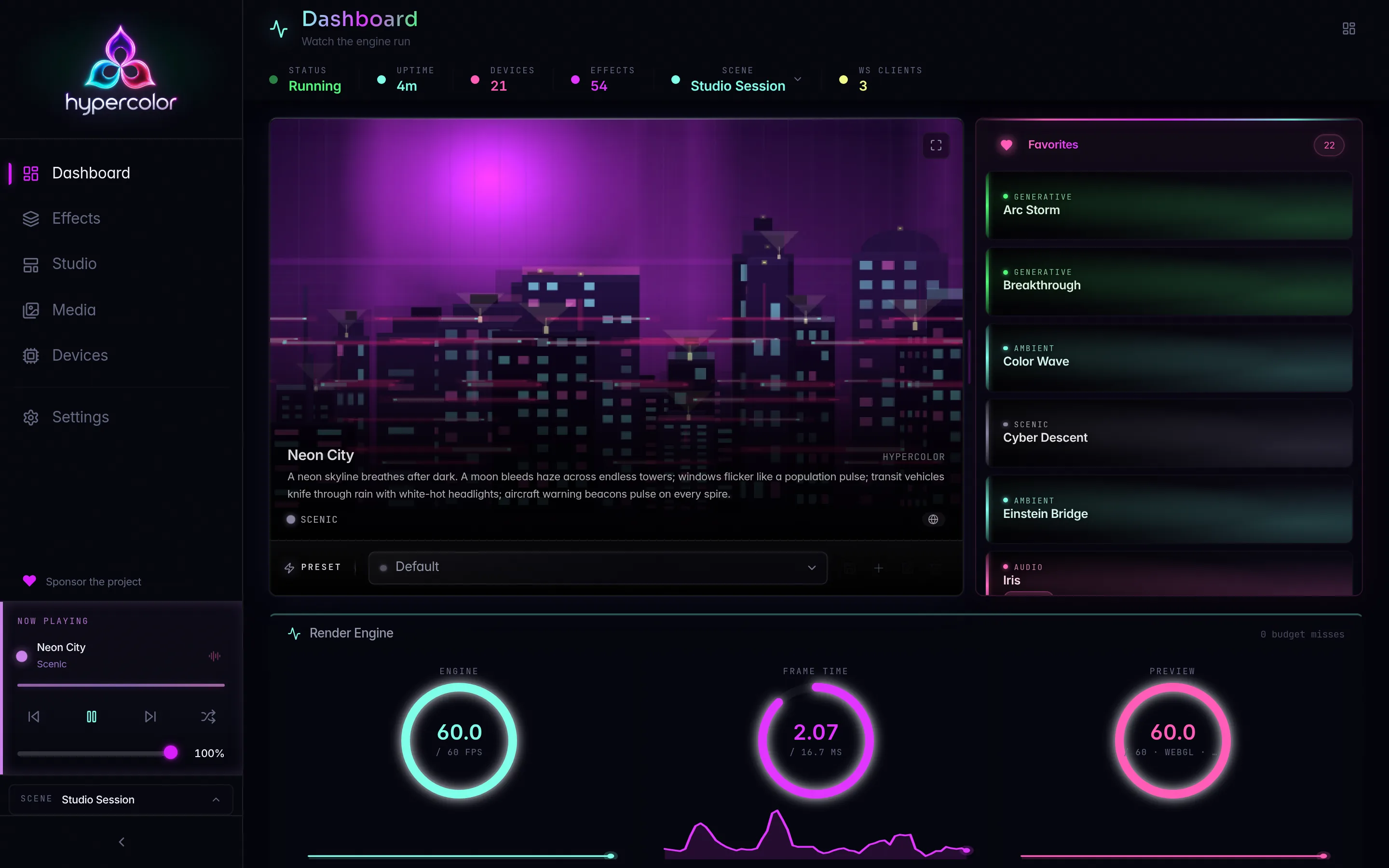
#The main window
The window hosts the Hypercolor web UI inside a Tauri webview. The default size is 1200×800 (minimum 800×500). Links that point to http:// or https:// URLs open in your system browser rather than a new webview.
Closing the window does not quit the app: it hides the window and keeps the daemon running. To bring the window back, click the tray icon (see below) or use Show Window in the tray menu.
#Window visibility shortcut
On all platforms, left-clicking the tray icon toggles the main window. On macOS, left-clicking opens the tray menu instead (standard macOS behavior); use the Show Window menu item there.
#Navigating to Settings
Clicking Settings in the tray menu shows the window and navigates directly to /settings. You can also reach the settings page from inside the web UI.
#Tray icon ⚡
The tray icon is the primary control surface when the window is hidden. It refreshes each time the daemon sends a state update: active effect, active scene, and connection status are all reflected in real time.
#Tooltip
Hovering over the tray icon shows a tooltip with the current effect and, when a scene is active, the scene name in brackets:
- Connected, effect active, no scene:
Hypercolor - Borealis - Connected, effect active, scene active:
Hypercolor - Borealis [Movie Night] - Connected, scene snapshot locked:
Hypercolor - Borealis [Movie Night snap] - Connected, no effect:
Hypercolor - No effect - Disconnected:
Hypercolor - Disconnected - Supervisor stopped retrying:
Hypercolor - Supervisor stopped trying to restart the daemon
#Tray menu: connected state
When the daemon is reachable the menu contains the following items, in order:
| Item | Type | What it does |
|---|---|---|
Hypercolor (header) | Disabled label | App name header |
| Current effect name | Disabled label | Shows ▶ <effect name> or No effect active |
Scene: <name> | Disabled label | Shown only when a scene is active; appends [snap] when the scene snapshot is locked |
| Effects | Submenu | One item per available effect; clicking applies it |
| Scenes | Submenu | One item per saved scene; clicking activates it |
| Servers | Submenu | Shown only when more than one daemon server is configured; see Multi-server |
Brightness (N%) | Submenu | Five presets: 0%, 25%, 50%, 75%, 100% |
| Stop Effect | Item | Shown only when an effect is active |
| (separator) | — | — |
| Show Window | Item | Raises and focuses the main window |
| Open Web UI | Item | Opens the daemon web UI in your default browser |
| Open Logs Folder | Item | Opens the app log directory |
| Open User Effects Folder | Item | Opens <data>/effects/user/ for adding custom HTML effects |
| Export Diagnostics | Item | Bundles logs and system info into a zip on your Desktop |
| Settings | Item | Shows the window and navigates to /settings |
| (separator) | — | — |
| Quit | Item | Exits the app and stops the daemon |
#Tray menu: disconnected state
When the daemon is not reachable the header changes to Hypercolor (Disconnected) and a disabled Daemon not reachable label replaces the effect/scene labels. The Effects, Scenes, Brightness, and Stop Effect items are removed. The Servers submenu still appears if more than one server is configured, and the app entries (Show Window through Quit) remain available.
#Brightness submenu
The Brightness submenu exposes five presets: 0%, 25%, 50%, 75%, 100%. The submenu label shows the current value, for example Brightness (75%). The active preset has a filled-circle indicator (●). Choosing a preset sends a brightness command to the daemon immediately; the submenu label updates on the next state refresh.
#Multi-server
When more than one Hypercolor daemon is configured, the tray shows a Servers submenu. Each entry shows the server’s instance name, host address, and (if authentication is required and no API key is stored) a (Key required) suffix. The active server has a ● prefix. The submenu also contains a Refresh Servers item to force a rediscovery.
Server configuration lives in your CLI config file. See Configuration for details.
#Export Diagnostics
Export Diagnostics collects support information into a single timestamped zip and saves it to your Desktop (falling back to your home directory if the Desktop is not writable). The bundle includes:
- The 10 most recently modified log files from the app log directory
- A
system-info.txtwith app version, default daemon URL, daemon executable name, OS, architecture, and motherboard info - On Windows: a
platform-probe.txtwith the output ofdiagnose-windows.ps1. It checks PawnIO and SMBus support, then asks the running daemon for the device list, the fullhypercolor diagnosereport with per-device output stats, any competing RGB software it found (see Conflicting software), and the USB devices no driver claims. It finishes with the Windows driver that owns each USB device and interface (HidUsb,WINUSB,usbccgp), with device serials left out.
After the export completes the app opens the Desktop folder so the zip is easy to find.
The daemon logs at info level by default. When you’re reporting a device that shows up but never lights, set Settings > Developer > Log Level to Debug, quit and reopen the app so the daemon restarts with the new level, reproduce the problem, then export. Set it back to Info afterwards.
To share the bundle with the Hypercolor team, attach it to your bug report or support thread. No personally identifiable information is collected beyond what is listed above.
#Logs folder
Open Logs Folder opens the directory where rolling log files are written. The exact path depends on your platform:
- Linux:
~/.local/share/hypercolor/logs/(XDG data directory) - macOS:
~/Library/Application Support/hypercolor/logs/ - Windows:
%LOCALAPPDATA%\hypercolor\logs\
The daemon’s own log is written alongside the app log in the same directory and spans across supervisor restarts.
To follow logs live from the CLI:
hypercolor service logs --follow#User Effects folder
Open User Effects Folder opens <data>/effects/user/, the directory where you can drop custom HTML effect files for Hypercolor to load. Place any .html effect file there and it will appear in the Effects list after a rescan.
hypercolor effects rescanSee Creating effects for how to build and package an HTML effect.
#Autostart
The desktop app can register itself to launch at login. When autostart is enabled it passes the --minimized flag, so the window stays hidden and only the tray icon appears on boot.
- Linux: registers a systemd user service or XDG autostart entry via the Tauri autostart plugin
- macOS: installs a LaunchAgent at
~/Library/LaunchAgents/tech.hyperbliss.hypercolor.plist - Windows: registers a Run key in the current user’s registry
Toggle autostart in the Settings page inside the app.
If you want to start the app hidden from the command line (for example in a session startup script), pass --minimized or --hidden directly:
hypercolor-app --minimized#App flags
The desktop app binary accepts a small set of flags, primarily for single-instance coordination:
| Flag | Effect |
|---|---|
--minimized / --hidden | Start with the window hidden; tray icon only |
--show | Recognized for forwarding to a running instance |
--quit | Asks an already-running instance to quit |
If an instance is already running, the single-instance plugin forwards the new invocation to it: with --quit the running app exits, and with any other arguments (including no flags) it shows and focuses the main window.
#Running from source
To build and run the desktop app from source:
just appThis builds the daemon and the app shell at the preview profile and launches the app binary. The web UI is served by the daemon on :9420. To run the UI dev server alongside the daemon instead (Leptos hot-reload on :9430), use:
just devSee The pieces for a full breakdown of what each component does and when to use which entry point.
#Troubleshooting
Window does not appear after clicking the tray icon. The window may be off-screen if you changed monitor configurations. Quit and restart the app to reset window position.
Tray icon shows “Disconnected” at startup. The supervisor is still launching the daemon. Wait a few seconds; the icon updates automatically when the daemon becomes reachable. If it stays disconnected, check Common issues.
Export Diagnostics fails. The Desktop directory must be writable. If the zip is not produced, check app logs (via Open Logs Folder) for the error message.
Autostart launches the app but lighting does not start. The daemon restores the last active scene on boot (start_scene = "last" default). Capture or create a scene, activate it, then confirm it is still selected before quitting.