TypeScript canvas effects
The canonical canvas() reference: stateless vs stateful, lifecycle, time in seconds, scale context, viewport control.
TypeScript canvas effects are the default authoring path. You write a draw function, declare controls, and the SDK wires up the render loop, control UI, audio pipeline, and palette sampling around you. No lifecycle methods, no manifest file.
An effect is a single module that calls canvas() and exports the result as its default:
import { canvas, num } from "hypercolor";

export default canvas(
  "Gradient Sweep",
  {
    speed: num("Speed", [1, 10], 3),
  },
  (ctx, time, controls) => {
    const { width, height } = ctx.canvas;
    const speed = controls.speed as number;
    const offset = (time * speed * 0.1) % 1;

    const gradient = ctx.createLinearGradient(0, 0, width, 0);
    gradient.addColorStop(offset, "#e135ff");
    gradient.addColorStop((offset + 0.5) % 1, "#80ffea");
    ctx.fillStyle = gradient;
    ctx.fillRect(0, 0, width, height);
  },
  { description: "A drifting magenta-to-cyan gradient" },
);
The canvas() call registers the effect as a side effect; the default export is a void value at runtime. The SDK reads the declaration, generates the controls UI, hooks up the render loop, and bundles the whole thing into one self-contained HTML artifact when you build. See Creating effects for the scaffold-to-build loop and Setup for installing the SDK.
#The canvas() signature
canvas(name, controls, draw, options?)
canvas.stateful(name, controls, factory, options?)| Parameter | Type | Purpose |
|---|---|---|
name | string | Display name shown in the catalog and UI |
controls | ControlMap | Declared control slots (see Controls) |
draw | DrawFn or FactoryFn | Per-frame render function, or a factory that returns one |
options | CanvasFnOptions | Metadata: description, author, audio, screen, category, designBasis, presets |
DrawFn has the signature:
type DrawFn = (
  ctx: CanvasRenderingContext2D,
  time: number,
  controls: Record<string, unknown>,
) => void;ctxis a standard Canvas2D context. Its dimensions are whatever the daemon is currently rendering at, resized on every frame.timeis elapsed seconds since the page loaded, not milliseconds. The base effect passestimestamp / 1000into your draw function.controlsis the resolved map of current control values. The SDK handles speed normalization, palette resolution, and combobox mapping before your function sees it.
Every exported name in your effect must match hypercolor verbatim. The effect entry points are canvas, canvas.stateful, effect (GLSL, see GLSL effects), and face (display faces). There is no createCanvasEffect or defineEffect.
#Stateless vs stateful
The SDK distinguishes stateless and stateful effects purely by the render function’s arity: renderFn.length === 0 means it is a factory.
Stateless draws from its arguments alone. No closure variables, no persistent buffers. Arity is 1 or more.
canvas("Pulse", { speed: num("Speed", [1, 10], 5) }, (ctx, time, controls) => {
  // draws entirely from ctx + time + controls
});
Stateful uses a factory that returns the draw function. The factory runs once when the effect starts, so anything you set up in its closure persists across frames. The factory takes no arguments, so its arity is 0.
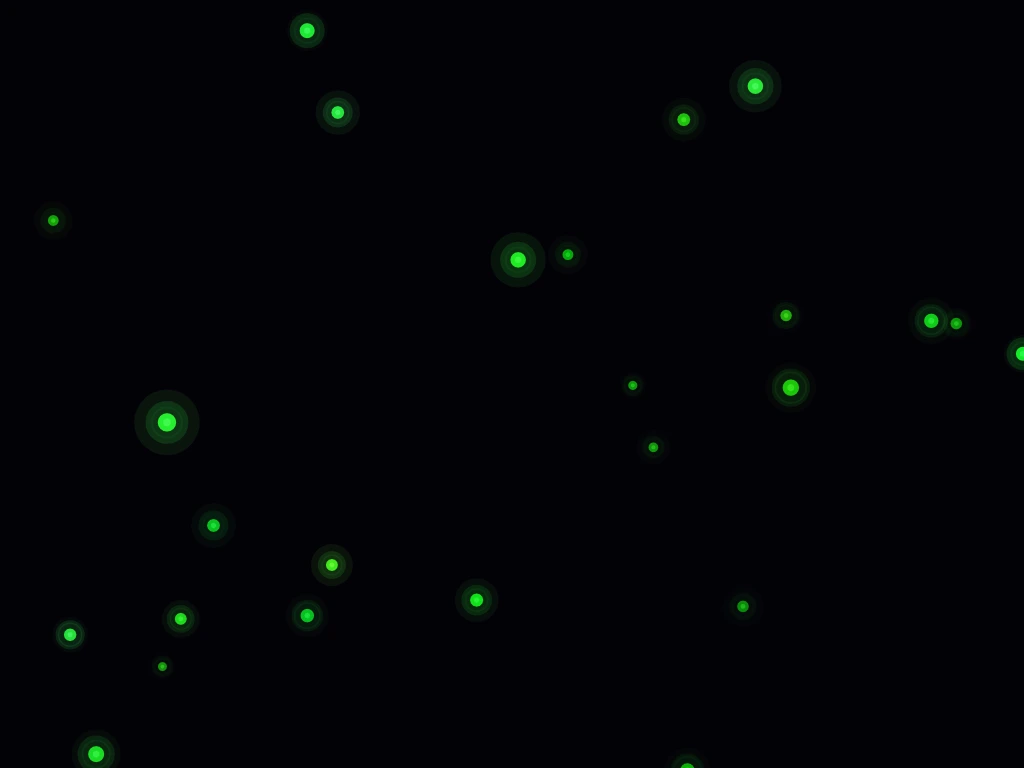
canvas("Fireflies", { count: num("Count", [10, 500], 120) }, () => {
  const flies = Array.from({ length: 120 }, makeFly);
  return (ctx, time, controls) => {
    for (const fly of flies) {
      updateAndDraw(ctx, fly, time, controls);
    }
  };
});
The SDK detects which one you wrote from the function’s .length. If that heuristic ever fights you (for example a factory that happens to declare a parameter), use the explicit form, which bypasses arity detection entirely:
canvas.stateful("Fireflies", { count: num("Count", [10, 500], 120) }, () => {
  const flies = Array.from({ length: 120 }, makeFly);
  return (ctx, time, controls) => {
    /* ... */
  };
});
Use stateful when you need particles, history buffers, trail accumulators, color caches, or any data that has to live longer than one frame. Both shipped examples below, Fiberflies and Lava Lamp, are stateful: they keep particle arrays and a marching-squares grid alive across the whole run and only rebuild on resize.
#Lifecycle
Each effect runs inside a BaseEffect that owns the canvas, the animation loop, and the control contract. The order is fixed and you never call these yourself:
flowchart LR
  A[initialize] --> B[initializeRenderer]
  B --> C[initializeControls]
  C --> D[startAnimation]
  D --> E[animationFrame loop]
  E --> F[syncCanvasSizeFromEngine]
  F --> G[draw / render]
  G --> H[onFrame: poll controls]
  H --> E
For a stateful effect, initializeRenderer is where the factory runs and captures the returned draw function. Every frame the base effect first calls syncCanvasSizeFromEngine, which reads window.engine.width / window.engine.height and resizes the backing canvas to match, then invokes your draw function. Controls are re-polled every 0.1 seconds, or immediately when the daemon marks them dirty, so live control edits land within a frame or two without you wiring anything up.
The base effect also honors an FPS cap when the host sets one, and supports a host-driven loop in capture mode. Both are transparent to your draw code: write as if you draw one frame per call and the host owns cadence.
#Resolution independence
Read ctx.canvas.width and ctx.canvas.height every frame. The daemon renders at 640x480 by default, but the canvas size is user-tunable (Settings → Rendering, flowing from daemon.canvas_width and daemon.canvas_height). Nothing in the SDK treats any resolution as canonical, so hardcoded dimensions will be wrong on someone’s rig.
canvas("Orbit", controls, (ctx, time, controls) => {
  const { width, height } = ctx.canvas;
  const minDim = Math.min(width, height);
  const cx = width * 0.5;
  const cy = height * 0.5;
  // everything below is sized in units of minDim
});
Sizing in fractions of width, height, or Math.min(width, height) keeps an effect crisp at any canvas size. Both shipped examples do exactly this: Lava Lamp derives its blob radius from Math.min(w, h) / 15 and rebuilds its grid when the dimensions change.
#Scale context for fixed design grids
Some effects are easier to author against a fixed coordinate space, most commonly the legacy 320x200 LightScript grid. Pass a designBasis and use scaleContext() to translate design coordinates into live pixels:
import { canvas, scaleContext } from "hypercolor";

export default canvas(
  "Legacy",
  controls,
  (ctx, time, controls) => {
    const s = scaleContext(ctx.canvas, { width: 320, height: 200 });
    ctx.fillRect(s.dx(20), s.dy(30), s.dw(60), s.dh(40));
  },
  { designBasis: { width: 320, height: 200 } },
);
scaleContext(source, designBasis?) is cheap to build, so construct one fresh each frame. It returns a ScaleContext with both the live size and converters:
| Member | Meaning |
|---|---|
width, height | Live canvas size in pixels |
sx, sy | Per-axis scale factors (width / basis.width, etc.) |
scale | Uniform scale, min(sx, sy), preserves aspect ratio |
dx(x), dy(y) | Design-space coordinate to live X / Y pixels |
dw(w), dh(h) | Design-space width / height to live pixels |
ds(value) | Uniform-scale a radius, stroke width, or font size |
nx(t), ny(t) | Normalized [0,1] to live X / Y pixels |
Omit designBasis and the scale becomes the identity: sx and sy are 1 and the converters echo their inputs. For class-based effects, set protected designBasis on the class and call this.scaleContext() instead.
#Viewport control
The rect() control gives users an interactive viewport rectangle they can drag and resize, which is how a screen-reactive effect lets someone pick the capture region. It returns a RectValue with normalized [0,1] coordinates:
import { canvas, rect } from "hypercolor";

export default canvas(
  "Screen Sampler",
  {
    region: rect(
      "Capture region",
      { x: 0, y: 0, width: 1, height: 1 },
      { preview: "screen" },
    ),
  },
  (ctx, time, controls) => {
    const region = controls.region as {
      x: number;
      y: number;
      width: number;
      height: number;
    };
    // region.x/.y/.width/.height are all in [0,1]
  },
);
The preview option ("screen", "web", or "canvas") tells the control which backdrop to draw behind the draggable rectangle, and aspectLock constrains its proportions. Because the coordinates are normalized, the same region maps cleanly onto whatever resolution the daemon is rendering at.
#Palettes
Declare a palette control with the paletteControl() factory and the SDK auto-converts the value to a palette function before your draw sees it. Call it with t in [0, 1] to get a CSS color string; Oklab interpolation keeps gradients perceptually smooth.
import { canvas, paletteControl } from "hypercolor";

export default canvas(
  "Ribbon",
  {
    palette: paletteControl("Palette", ["SilkCircuit", "Aurora", "Synthwave"]),
  },
  (ctx, time, controls) => {
    const pal = controls.palette as (t: number, alpha?: number) => string;
    ctx.fillStyle = pal(0.25, 0.6);
    // ...
  },
);
The auto-conversion only fires for paletteControl(), which sets the internal palette: true flag the resolver keys off. A plain combo("Palette", [...]), a bare string-array shorthand like palette: ["A", "B"], or any other combobox leaves the value as the selected string. Recover the function with createPaletteFn(name) inside your draw, caching it across frames so you only rebuild on change.
import { canvas, combo, createPaletteFn } from "hypercolor";

export default canvas.stateful(
  "Ribbon",
  {
    palette: combo("Palette", ["SilkCircuit", "Aurora", "Synthwave"], {
      group: "Color",
    }),
  },
  () => {
    let name = "";
    let pal = createPaletteFn("SilkCircuit");
    return (ctx, time, controls) => {
      const next = controls.palette as string;
      if (next !== name) {
        name = next;
        pal = createPaletteFn(name);
      }
      ctx.fillStyle = pal(0.25, 0.6);
      // ...
    };
  },
);
See Palettes for the full registry and the Oklab internals.
#Audio
Canvas effects pull audio with audio(), which is the getAudioData export under a shorter alias. Call it inside your draw function each frame to get a fresh AudioData snapshot.
import { audio, canvas } from "hypercolor";

export default canvas(
  "Pulse",
  { speed: num("Speed", [1, 10], 5) },
  (ctx, time, controls) => {
    const a = audio();
    const intensity = Math.max(a.beatPulse, a.bassEnv * 0.6);
    // ...
  },
  { audio: true },
);
{ audio: true } is not cosmetic. If the build detects any audio access (audio(, getAudioData(, ctx.audio, engine.audio) but the option is missing, the build fails with an audio-reactivity validation error. Set it whenever you read audio.
Under no audio every field is zero or a sensible idle value. Don’t gate behavior on strict equality with zero; clamp to a floor so the effect still reads in a quiet room:
const level = Math.max(a.levelShort, 0.04);The richest audio surface is the harmonic stack: chromagram (12 pitch classes), harmonicHue, chordMood, dominantPitch, onsetPulse. Most effects lean on bass and beatPulse alone and miss that the SDK already does music-theory-aware analysis for free. See Audio for the full field list and idioms.
#Composite modes and trails
Canvas effects do not auto-clear between frames. That is deliberate: the SDK overrides clearCanvas() with a no-op so trail effects and history accumulators keep their pixels. Your draw function owns clearing.
For a clean-each-frame look, fill the whole canvas with an opaque background:
ctx.fillStyle = "#04050a";
ctx.fillRect(0, 0, ctx.canvas.width, ctx.canvas.height);
For persistence trails, use a semi-transparent fill so old frames fade out:
ctx.fillStyle = "rgba(4, 5, 10, 0.22)";
ctx.fillRect(0, 0, ctx.canvas.width, ctx.canvas.height);
For additive glow on top of an existing canvas, switch composite modes. Fiberflies uses screen so overlapping neon halos bloom cleanly instead of muddying to white:
ctx.save();
ctx.globalCompositeOperation = "screen";
drawGlowyThings(ctx);
ctx.restore();
#Presets
Presets are named control snapshots that ship with the effect. Users pick one from the catalog and every control is applied in a single click. Declare them in options.presets:
{
  presets: [
    {
      name: "Default",
      description: "Balanced settings",
      controls: { speed: 5, palette: "Aurora", bloom: 60 },
    },
    {
      name: "Slow Burn",
      description: "Minimal motion for ambient sets",
      controls: { speed: 1, palette: "Ember", bloom: 30 },
    },
  ],
}
Set every control in every preset. Users expect a preset to fully reset the effect, so a partial snapshot that leaves some sliders untouched reads as a bug. The shipped Lava Lamp and Fiberflies effects each carry seven or eight presets, every one specifying all controls. See Controls for how presets are serialized into the build artifact.
#Designing for LED hardware
Canvas effects can look great on a monitor and terrible on LEDs for predictable reasons. The two biggest mistakes are large bright white fills that wash out to a blinding amoeba-shaped blob, and medium-saturation colors that read as vivid on screen but as muddy soup on strips.
Rules that pay off every time:
- Keep at least one RGB channel at or near zero for any vivid color.
- Default to high saturation, around 85-100%; reserve lower saturation for deliberate desaturated looks.
- Use a dark floor so idle states don’t wash out a room.
- Treat treble as sparkle, bass as structure.
- Draw small, bright, specific things against near-black, not big washes.
Fiberflies bakes this in with an ledSafeHue helper that bends muddy yellow-greens toward LED-friendly hues. Color science for RGB LEDs has the full treatment.
#Where to go next
- Controls: every control factory, shorthand inference, magic names, and presets.
- Audio: the full
AudioDatasurface and reactive idioms. - Palettes: the named palette registry and Oklab sampling.
- Dev workflow: build, validate, and ship into the running daemon.
- GLSL effects: the shader authoring path via
effect().
The shipped library spans dozens of SDK canvas and shader effects under sdk/src/effects/ alongside the compiled-in native renderers in crates/hypercolor-core/src/effect/builtin/. Browse those directories to see the full set, then scaffold your own with Creating effects.