CLI reference
The hypercolor command-line tool: 18 commands, global flags, env vars, and scripting-friendly JSON output.
The hypercolor binary is the terminal interface to the daemon. It speaks the daemon’s REST API over HTTP, renders results as styled tables by default, and drops to plain text or JSON when you ask it to. Every command in this reference maps to a route documented in the REST reference; the CLI is a thin, ergonomic shell over that contract.
If you would rather drive Hypercolor from an AI agent, the same JSON output and exit codes make this CLI a clean tool surface. See Agents & MCP for both the CLI-scripting angle and the MCP server alternative.
The daemon must be running. The CLI talks to the daemon on :9420. If nothing is listening, you will get a connection error. Start it with hypercolor service start, or launch the desktop app, and verify with hypercolor status. The one exception is hypercolor service, which manages the daemon process directly and never touches the API.
#Global flags
Every flag below is global: it applies to any subcommand and can appear before or after it. Connection flags fall back to environment variables, so you set them once and forget them.
A connection setting comes from the first source that names it: the flag, then its environment variable, then the active profile in cli.toml, then the built-in default. A value you name always wins, even one equal to the default, so --port 9420 means port 9420 whatever the profile says.
hypercolor [OPTIONS] <COMMAND>| Flag | Env var | Default | Purpose |
|---|---|---|---|
--host <HOST> | HYPERCOLOR_HOST | profile, else localhost | Daemon hostname or IP. |
--port <PORT> | HYPERCOLOR_PORT | profile, else 9420 | Daemon port. |
--api-key <KEY> | HYPERCOLOR_API_KEY | (none) | Bearer token for authenticated requests. |
--profile <NAME> | HYPERCOLOR_PROFILE | (none) | Named connection profile from cli.toml. |
--format <FORMAT> | table | Output format. One of table, json, plain. | |
-j, --json | Shorthand for --format json. | ||
-q, --quiet | Suppress non-essential output. | ||
--no-color | Disable colored output. | ||
--theme <NAME> | HYPERCOLOR_THEME | Color theme name. | |
-v, --verbose | Increase log verbosity. Repeatable: -v info, -vv debug, -vvv trace. |
--format hides its allowed values in --help, so they are easy to miss. The three valid formats are table (the styled default), json (machine output: the daemon’s data payload with the envelope stripped), and plain (one bare value per line, ideal for piping into cut, grep, or a shell loop).
#Loopback needs no key
Connecting from the same machine? You do not need an API key. The daemon exempts loopback clients from authentication, which is why local CLI, TUI, and web UI all work with zero configuration. You only need --api-key (or HYPERCOLOR_API_KEY) when reaching a daemon over the network with auth enabled. The full auth model lives on the auth and security page.
#Command tree
Eighteen top-level commands, grouped by what they touch. Three of them are easy to confuse, so read the next callout before you script against them.
hypercolor
├── status            System state, render loop, active effect
├── effects           Browse, activate, and control effects
│   ├── list
│   ├── activate
│   ├── stop
│   ├── info
│   ├── patch
│   ├── reset
│   ├── rescan
│   └── layout {show | set | clear}
├── brightness        {get | set}
├── scenes            {list | active | create | snapshot | activate | deactivate | delete | info}
├── devices           Discovery, pairing, hardware control
│   ├── list
│   ├── discover
│   ├── pair
│   ├── info
│   ├── identify
│   ├── controls
│   ├── set-control
│   └── action
├── controls          {list | show | set | action}
├── drivers           {list | controls | set-control | action}
├── layouts           {list | show | update | create | delete | active | apply | preview}
├── audio             {devices}
├── library
│   ├── favorites     {list | add | remove}
│   ├── presets       {create | list | info | update | apply | delete}
│   └── playlists     {create | list | info | update | activate | active | stop | delete}
├── server            {info | health}
├── servers           {discover | adopt}
├── service           {start | stop | restart | status | enable | disable | logs}
├── config            {show | get | set | reset | path | profile {…}}
├── diagnose          Health checks and diagnostic reports
├── completions       {bash | zsh | fish | powershell}
└── tui Launch the interactive terminal dashboardserver, servers, and service are three different commands.
hypercolor server(singular) queries the one daemon you are connected to: its version, identity, and health.hypercolor servers(plural) discovers other daemons on your network over mDNS and saves them as connection profiles.hypercolor servicemanages the local daemon process throughsystemctl(Linux) orlaunchctl(macOS). It does not call the API at all.
#Lighting
#status
Show the current system state: the active effect, connected device count, render FPS, and audio capture status.
hypercolor statusEffect: Borealis (borealis)
FPS: 60.0
Devices: 3 connected
Audio: enabled (level: 0.42)| Flag | Default | Purpose |
|---|---|---|
--watch | Live-updating status that re-renders on state change. Stop with Ctrl-C. | |
--interval <SECONDS> | 1 | Refresh interval for --watch. Floored at 0.2. |
hypercolor status --watch --interval 0.5
hypercolor status --json | jq '.active_effect'#effects
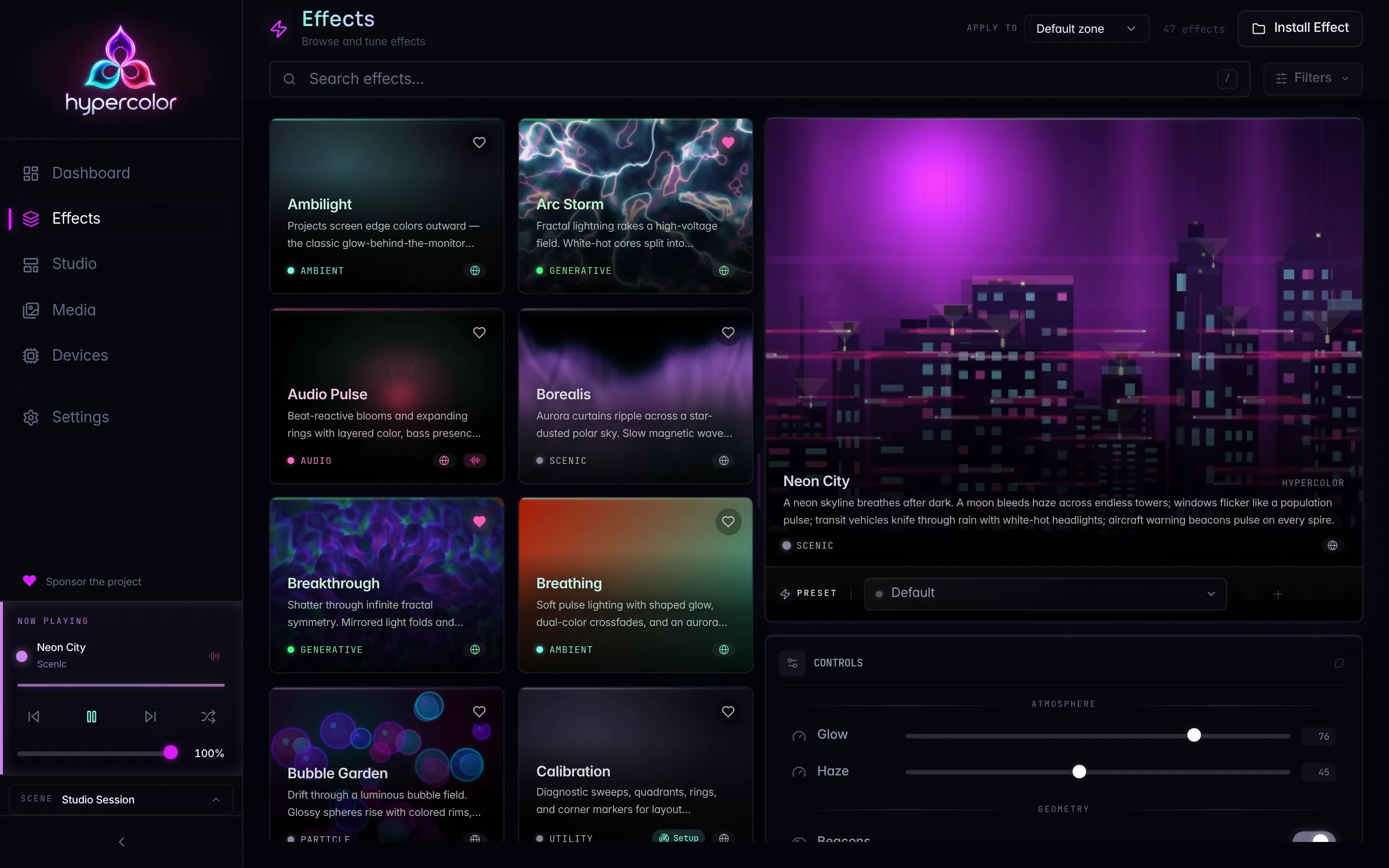
Browse the catalog, activate an effect, tune its live controls, and manage the spatial layout it renders against. Hypercolor ships native built-in effects plus a large library of HTML effects from the SDK, so rather than memorize a count, list the catalog and search it.
hypercolor effects list
hypercolor effects list --audio --category ambient
hypercolor effects list --search aurora
effects list flags:
| Flag | Purpose |
|---|---|
--source <KIND> | Filter by rendering source: native, html, shader. |
--audio | Audio-reactive effects only. |
--search <TEXT> | Match name, description, author, or tags. |
--category <NAME> | Filter by category. |
The daemon narrows the catalog, so every flag above is one query parameter on GET /api/v1/effects and the payload carries only the matching rows. A flag naming a category or source that does not exist answers with a validation error rather than an empty list.
Activate an effect by name or slug (fuzzy-matched). Tune it with repeatable --param key=value pairs, or the --speed / --intensity shorthands.
hypercolor effects activate borealis
hypercolor effects activate borealis --speed 30 --intensity 70
hypercolor effects activate plasma-engine --param hue_shift=120 --param density=0.8
effects activate flags:
| Flag | Default | Purpose |
|---|---|---|
-p, --param <KEY=VALUE> | Arbitrary control value. Repeatable. Values parse as JSON when valid, otherwise as a string. | |
--speed <0-100> | Speed-control shorthand. | |
--intensity <0-100> | Intensity-control shorthand. |
--param values are parsed as JSON first. So --param density=0.8 sends a number, --param wrap=true sends a boolean, and --param label=neon falls back to a string. Quote anything with shell-special characters.
The remaining effects subcommands act on the currently running effect or on effect metadata:
hypercolor effects info borealis          # Show effect details
hypercolor effects stop                   # Stop the active effect
hypercolor effects patch --param speed=45 # Live-patch controls, no re-apply
hypercolor effects reset                  # Restore controls to defaults
hypercolor effects rescan                 # Re-scan the library for new effects
effects patch updates the live effect without re-applying it. The CLI reads GET /api/v1/scene, resolves the real zone and layer ids, then calls PATCH /api/v1/scene/zones/{zone}/layers/{layer}/controls. The command requires at least one --param. effects reset follows the same path with the effect’s default values, and effects stop calls POST /api/v1/scene/clear.
Run hypercolor effects rescan after dropping a freshly built HTML effect into the effects directory so the daemon picks it up. Spatial layout selection lives on scenes through scene.layout_id; effects do not carry layout associations.
#brightness
Global output brightness, clamped to 0-100.
hypercolor brightness get
hypercolor brightness set 75#scenes
Scenes are whole-rig configurations: an entire lighting setup you can switch to in one move. They are not per-room presets, and zones are a separate, finer-grained partition of the canvas.
hypercolor scenes list
hypercolor scenes active
hypercolor scenes create "Movie Night" --description "Dim and warm"
hypercolor scenes snapshot "Current Rig" --description "Captured live state"
hypercolor scenes activate "Movie Night" --transition 250
hypercolor scenes deactivate          # Return to the Default scene
hypercolor scenes info "Movie Night"
hypercolor scenes delete "Movie Night" --yes
scenes create flags:
| Flag | Default | Purpose |
|---|---|---|
--description <TEXT> | Human-readable description. | |
--enabled <BOOL> | true | Whether the scene starts enabled. |
--mutation-mode <MODE> | live | live lets runtime actions rewrite the scene; snapshot freezes it. |
scenes snapshot captures the current runtime scene into a new snapshot-mode scene. It takes a name and optional --description.
#Devices
#devices
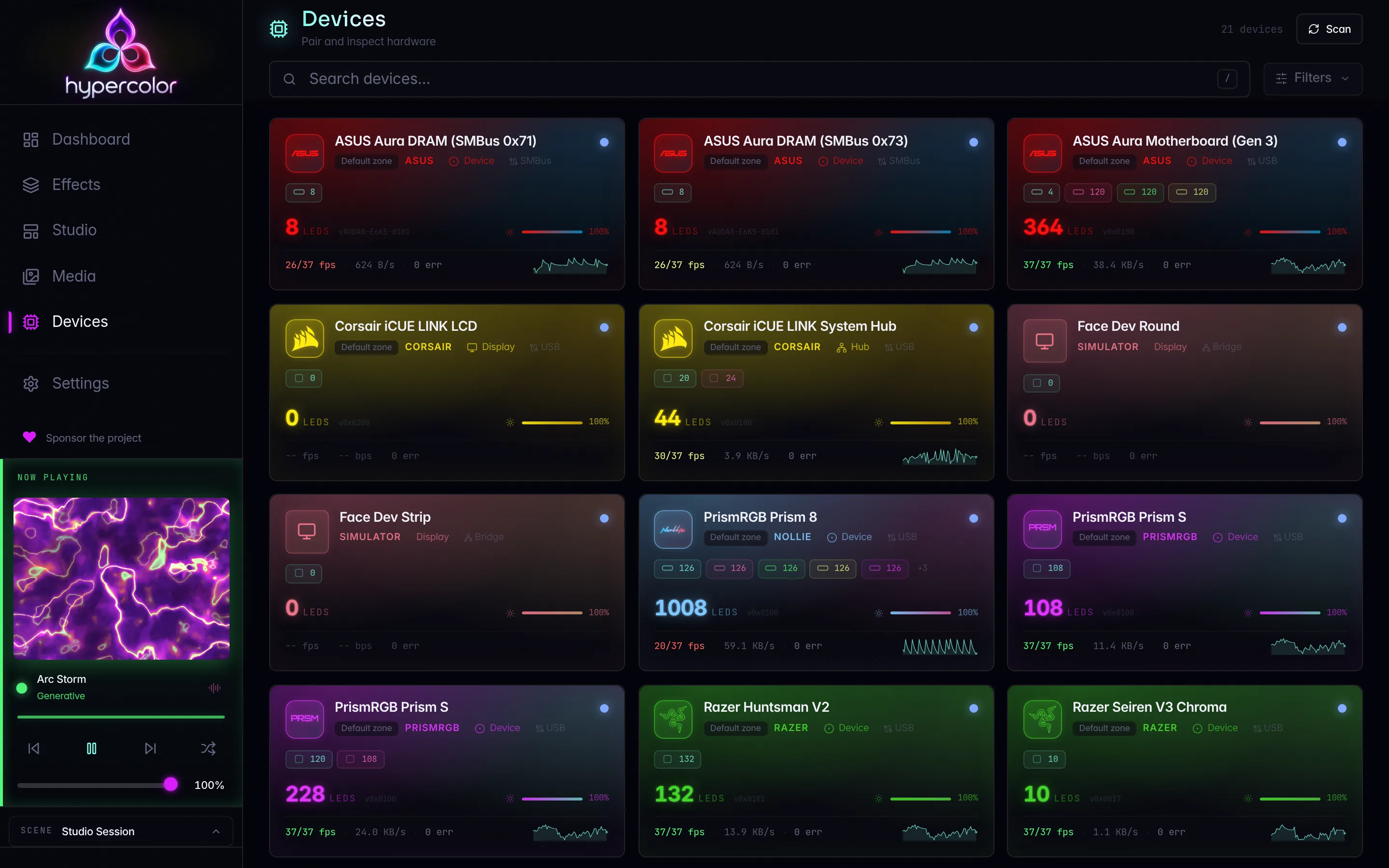
Discover hardware, pair network lights, and drive individual devices. USB and HID devices are auto-discovered; network devices (Hue, Nanoleaf, WLED, Govee) need a discovery scan and, for credential-based vendors, a pairing step.
hypercolor devices list
hypercolor devices list --status connected --driver razer
hypercolor devices discover --target wled --target hue --timeout 15
hypercolor devices info "Razer Huntsman"
hypercolor devices identify "Razer Huntsman" --duration 8
devices list filters by --status, --backend-id, and --driver. devices discover takes repeatable --target values (for example wled, usb, hue) and a --timeout in seconds (default 10).
Network devices that require credentials are paired with devices pair. This is the credential path for Hue’s link button, Nanoleaf’s power-button hold, and similar flows; see the per-vendor pages under Hardware for the timed pairing steps.
hypercolor devices pair "Living Room Bridge"
hypercolor devices pair "Shapes" --no-activate
The control subcommands reach into a device’s dynamic control surface (color order, mode toggles, per-device actions):
hypercolor devices controls "Aura Motherboard"
hypercolor devices set-control <device> color_order enum:grb
hypercolor devices set-control <device> brightness duration:1500 --dry-run
hypercolor devices action <device> reset --input force=true --yes
set-control takes a <device> <field> <value> triple where the value is typed, for example enum:grb, bool:true, or duration:1500. Add --expected-revision <N> for optimistic concurrency and --dry-run to validate without applying. action takes a <device> <action> pair with repeatable -i/--input assignments and --yes to confirm guarded actions.
#controls
The same dynamic control surfaces, addressed by surface, driver, or device. Use this when you want to enumerate or batch-set typed fields rather than reach through devices.
hypercolor controls list --device "WLED Desk"
hypercolor controls list --driver wled --include-driver
hypercolor controls show <surface-id>
hypercolor controls set <surface> -v power=bool:true -v ip=ip:10.0.0.2
hypercolor controls action <surface> reboot --yes
controls set requires at least one -v/--value assignment in field=type:value form, and accepts --expected-revision and --dry-run.
#drivers
List loaded driver modules and reach driver-level control surfaces (settings that belong to the driver as a whole, not a single device).
hypercolor drivers list
hypercolor drivers controls wled
hypercolor drivers set-control wled transport enum:ddp
hypercolor drivers action wled rescan --yes#layouts
Spatial layouts map the composed canvas onto physical LED positions. Create, inspect, apply, and preview them here. The coordinate system is normalized to [0.0, 1.0], so layouts stay resolution-independent.
hypercolor layouts list
hypercolor layouts active
hypercolor layouts show desk-ring
hypercolor layouts create --name desk-ring --data ./ring.json
hypercolor layouts update desk-ring --data '{"rotation": 90}'
hypercolor layouts apply desk-ring      # Make it the active layout
hypercolor layouts preview desk-ring    # Preview without committing
hypercolor layouts delete desk-ring
create and update take --data, which accepts inline JSON or a path to a JSON file describing the layout.
#audio
List the audio input devices the daemon can capture from. For audio-reactive effects you want a monitor source, not a microphone; the selection and PipeWire/PulseAudio setup live in the Guide.
hypercolor audio devicesThe active capture device is marked in the table; --json returns the full list with sample rates and channel counts.
#Library
#library
Saved effect configurations in three flavors: favorites (quick-access effect bookmarks), presets (an effect plus a saved set of control values), and playlists (timed sequences of effects and presets).
# Favorites
hypercolor library favorites list
hypercolor library favorites add borealis
hypercolor library favorites remove borealis

# Presets
hypercolor library presets create "Warm Pulse" --effect breathing \
  -c hue=30 -c speed=20 -t cozy --description "Slow amber breathing"
hypercolor library presets list
hypercolor library presets info "Warm Pulse"
hypercolor library presets apply "Warm Pulse"
hypercolor library presets update "Warm Pulse" --data '{"description": "Updated"}'
hypercolor library presets delete "Warm Pulse" --yes

# Playlists
hypercolor library playlists create "Evening" \
  -i effect:borealis:30000 -i preset:warm-pulse:60000:1500
hypercolor library playlists list
hypercolor library playlists activate "Evening"
hypercolor library playlists active
hypercolor library playlists stop
hypercolor library playlists delete "Evening" --yes
presets create takes repeatable -c/--control key=value pairs and -t/--tag values. playlists create takes repeatable -i/--item specs in the form effect:<name> or preset:<name>, optionally suffixed with :duration_ms and :duration_ms:transition_ms. Playlists loop by default; pass --no-loop to play through once.
#Network
#server
Query the daemon you are connected to.
hypercolor server info     # Version, identity, capabilities
hypercolor server health   # Quick health check
server health probes the daemon’s top-level /health route, the same unversioned liveness endpoint a readiness probe hits, so it works even when the versioned API surface is unavailable.
#servers
Find other Hypercolor daemons on the local network over mDNS and save them as named connection profiles.
hypercolor servers discover --timeout 5
hypercolor servers adopt "studio-rig" --as studio --timeout 5
adopt saves a discovered instance as a profile (defaulting to the instance name) that you can later select with the global --profile flag.
#service
Manage the daemon process through your platform’s service manager (systemctl on Linux, launchctl on macOS). These commands do not call the daemon API.
hypercolor service start
hypercolor service stop
hypercolor service restart
hypercolor service status
hypercolor service enable      # Autostart on login
hypercolor service disable
hypercolor service logs --follow --lines 100
hypercolor service logs --since 1h
logs flags: -f/--follow to tail live, -n/--lines <N> (default 50), and --since <WHEN> accepting expressions like 1h, today, or an ISO date.
#System
#config
Read and write daemon configuration, and manage CLI connection profiles. Keys are dotted paths into the config tree (for example daemon.fps, audio.gain, daemon.canvas_width).
hypercolor config show
hypercolor config get daemon.canvas_width
hypercolor config set audio.gain 1.5
hypercolor config set daemon.fps 60 --no-live  # Persist without touching the daemon
hypercolor config reset audio.gain
hypercolor config reset --yes                  # Full reset
hypercolor config path                         # Print the config file location
A write applies to the running daemon immediately whenever the key registry says the daemon can re-apply it; --no-live persists the value and leaves the running daemon alone, and --live states the default request explicitly. Ask GET /api/v1/config/schema how any key behaves. The full configuration schema is documented in the Guide.
Connection profiles for the CLI itself live under config profile:
hypercolor config profile list
hypercolor config profile show studio
hypercolor config profile add studio --host 192.168.1.40 --port 9420 --label "Studio rig"
hypercolor config profile set studio host 192.168.1.41
hypercolor config profile default studio
hypercolor config profile remove studio
hypercolor config profile stores CLI connection settings (host, port, key) locally so you can switch which daemon you talk to. The global --profile flag selects one of those connection profiles. Lighting snapshots live under hypercolor scenes snapshot.
#diagnose
Run health checks against the daemon and, optionally, write a full diagnostic report for bug filing.
hypercolor diagnose
hypercolor diagnose --check audio --check render
hypercolor diagnose --system
hypercolor diagnose --report ./hypercolor-report.txt| Flag | Purpose |
|---|---|
--check <NAME> | Run specific checks only. Repeatable: daemon, devices, audio, render, config, permissions. |
--report <PATH> | Write a full diagnostic report file for bug reports. |
--system | Include verbose system info (GPU, kernel, audio version). |
#completions
Generate shell completion scripts to stdout.
hypercolor completions bash > ~/.local/share/bash-completion/completions/hypercolor
hypercolor completions zsh  > ~/.zfunc/_hypercolor
hypercolor completions fish > ~/.config/fish/completions/hypercolor.fish
hypercolor completions powershell | Out-String | Invoke-Expression
Supported shells: bash, zsh, fish, powershell.
#tui
Launch the interactive terminal dashboard. The TUI auto-starts a local daemon if one is not already running, so it is a one-command way into a live session.
hypercolor tui
hypercolor tui --log-level info
--log-level sets the TUI session log level (error, warn, info, debug, trace); the default is warn. TUI logs route to a file rather than your terminal so they do not corrupt the display.
#Scripting and JSON output
The CLI is built for automation. Three output modes cover the common shapes:
hypercolor effects list --format table   # Styled, human-readable (default)
hypercolor effects list --format plain   # One name per line, no decoration
hypercolor effects list --json           # Data payload as JSON, for jq
JSON output is the data payload with the daemon’s { data, meta } envelope stripped, so you query fields directly rather than reaching through .data. Pull them with jq:
# Current effect name
hypercolor status --json | jq -r '.active_effect'

# Names of all audio-reactive effects
hypercolor effects list --audio --json | jq -r '.items[].name'

# Apply an effect only if a device is connected
if [ "$(hypercolor devices list --json | jq '.items | length')" -gt 0 ]; then
  hypercolor effects activate borealis
fi
On error the CLI prints the message to stderr and exits non-zero, so the usual shell control flow (&&, ||, set -e) works as expected. Pair --quiet with --format plain or --json to keep output clean inside scripts.
#Environment variables
| Variable | Sets |
|---|---|
HYPERCOLOR_HOST | Daemon host (same as --host). |
HYPERCOLOR_PORT | Daemon port (same as --port). |
HYPERCOLOR_API_KEY | Bearer token (same as --api-key). |
HYPERCOLOR_PROFILE | CLI connection profile (same as --profile). |
HYPERCOLOR_THEME | Color theme (same as --theme). |
#Related references
- REST API reference: every route these commands call.
- Agents & MCP: driving Hypercolor from AI agents, over both this CLI and the MCP server.
- Guide: installation, first launch, audio setup, and the full configuration schema.
- Hardware: per-vendor discovery and pairing flows for Hue, Nanoleaf, WLED, and Govee.